Quickstart
From sign-up to a hosted, tested connector in eight guided steps. Each step shows its own status; you can skip optional ones and come back.
Before you start
- A website you control, so you can add a meta tag, a file or a DNS record.
- Optional but useful: an OpenAPI spec for your API (JSON or YAML, a file or an address), and a test account on your site.
- An account: sign up free. The Free plan includes 20 test credits a month and everything up to a ready-to-submit app; hosting starts on Maker.
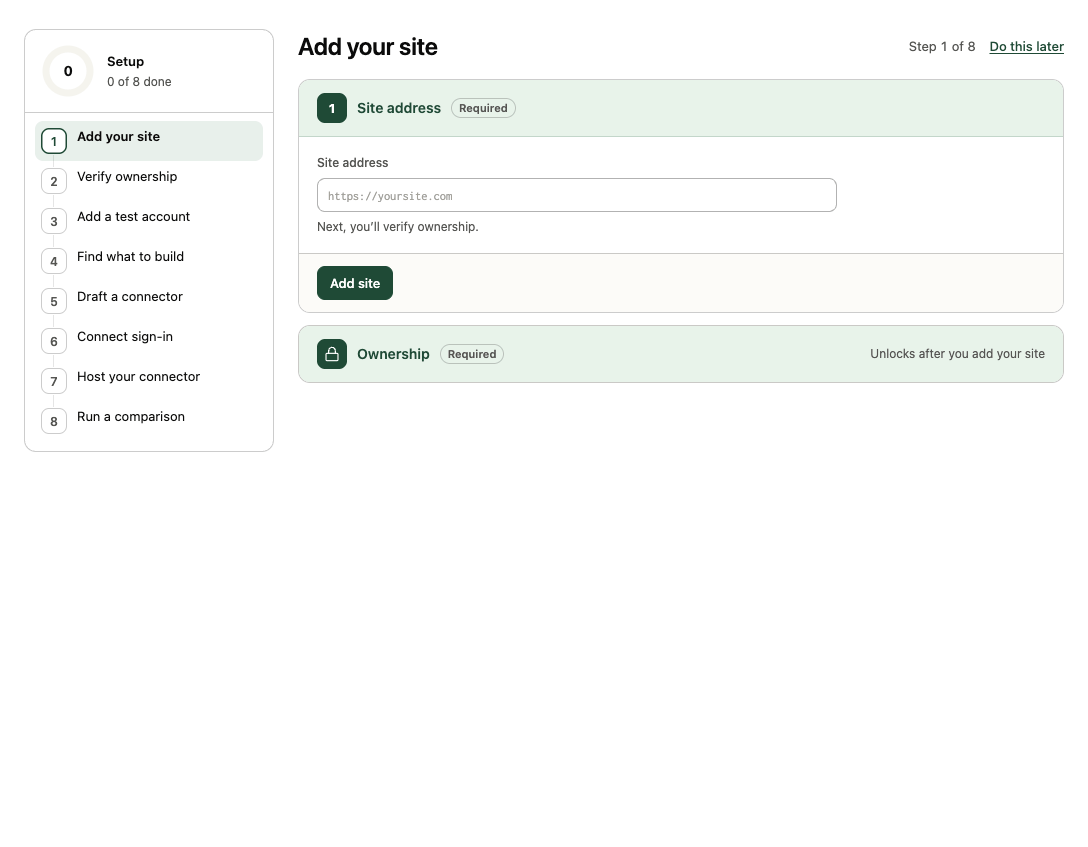
The eight steps
| # | Step | What you do | Guide |
|---|---|---|---|
| 1 | Add your site | Enter your site's address. | Add and verify your site |
| 2 | Verify ownership | Add a meta tag, upload a file or add a DNS record. On Cloudflare we can add the record for you. | Add and verify your site |
| 3 | Add a test account (optional) | Save a dedicated login so agents can test signed-in pages. | Add a test account |
| 4 | Find what to build | Use your API spec (recommended when we find one on your site; otherwise Have an API spec?), Explore my site (AI agents map it; a site's first explore is free) or Test my users' tasks (up to three suggested tasks as an AI browser test). | Build from your API spec · Explore your site |
| 5 | Draft a connector | Tick your sources (the API spec, finished runs), name the connector, pick endpoints, let AI design the tools, review them and publish v1. | Build from tests |
| 6 | Connect sign-in | Detect your login provider and check that AI apps can sign in. Skip it if your tools are public. | Connect your sign-in provider |
| 7 | Host your connector | Select Host to serve every published tool at https://<name>-mcp.transica.dev/mcp. Needs an admin and a paid plan. |
Host your connector |
| 8 | Run a comparison | Run the same tasks through the website and the hosted connector. Unlocks once hosting is on. | Compare your website and connector |
Progress is worked out from what actually exists (a verified site, a finished explore, a published connector, hosting on), so finishing a step anywhere in the dashboard ticks it here too. The Finish setup card at the top of the sidebar always shows how far you are and links back.
After setup
- Use it yourself. Copy the connection steps for Claude, ChatGPT, Codex or Cursor from Hosting → Connect AI apps. See Connect AI apps.
- Use your own domain (Business and up). Turn on Own domain on Hosting to answer at
mcp.yourdomain.com. See Hosting. - Get listed. Open AI app listings and follow the seven-step flow for ChatGPT or Claude. See Get listed in ChatGPT.
- Keep it healthy. Hosting checks every endpoint every 15 minutes and emails admins when something breaks. Weekly comparisons (Business and up) catch regressions. See Monitor health, usage and traffic.
Try before you test your own site
Tests → View example tests runs five scripted simulations on a made-up site, graded by the same checks as real tests. No real site is visited and nothing is charged.
See also · Guided setup for every screen of the eight steps.
Related guides
How-to · Set upAdd and verify your site
How-to · BuildBuild a connector from your API spec
How-to · HostHost your connector