Run an AI connector test
See an AI agent do your tasks using only your connector's tools, with no browser. It's the quickest way to check that your tool names and descriptions lead an assistant to the right answer. Connector-only runs are free.
You need: a published connector. Drafted connectors are tested through their hosted address, exactly like an AI app, so host the published version first; connectors from your own MCP server are called directly. Who: members and admins (admins approve write tools).
Steps
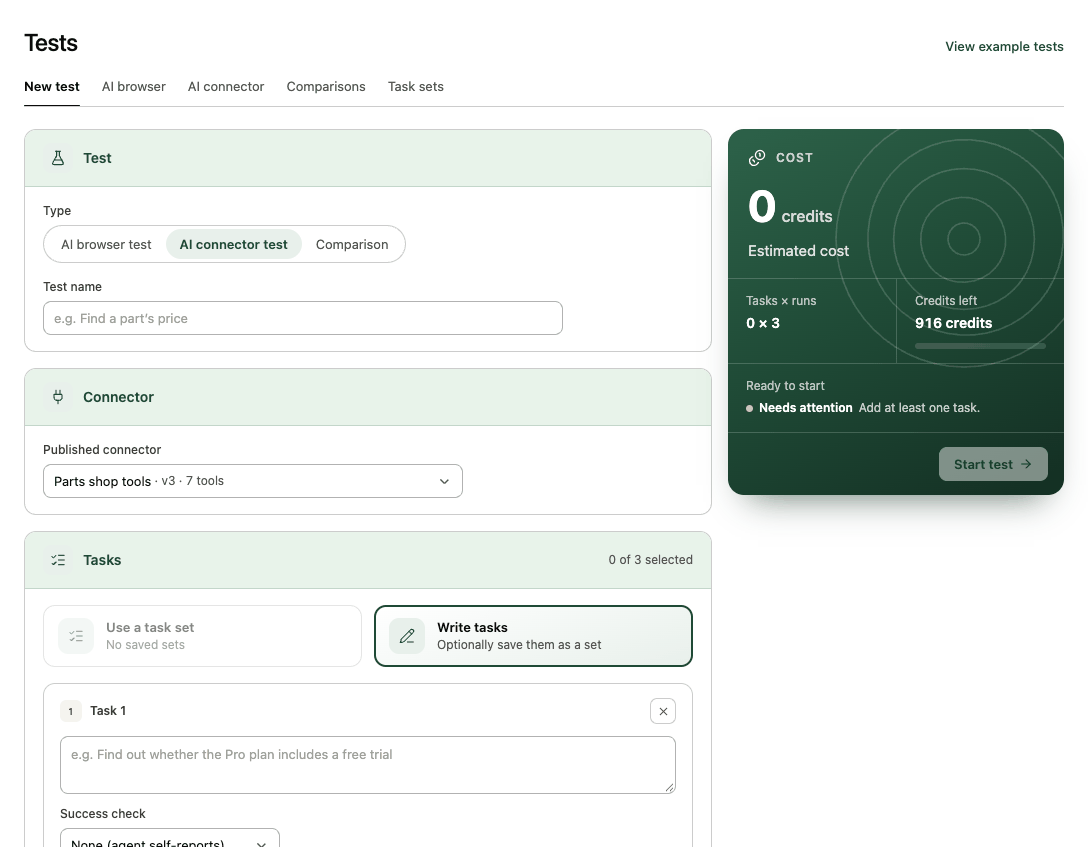
- Open Tests → New test, or on the connector page select Test this connector (the main button once it's hosted; otherwise under More).
- Choose AI connector test and enter a Test name.
- In the Connector card, pick the Published connector. It shows the Hosted address and Mode the test will use; if it says Not hosted, select Host connector first.
- Add up to 3 tasks with success checks (an Answer mentions… check is the most useful here).
- Under Settings:
- Runs per task: 1, 3 or 5.
- Test account: for signed-in hosting, the test signs in through your connector's sign-in as this account, like an AI app. Public hosting runs without sign-in.
- Write tools: an admin ticks the tools that change data which may run in this test. Unticked write tools are refused; high-risk tools never run.
- Select Start test.
Read the results
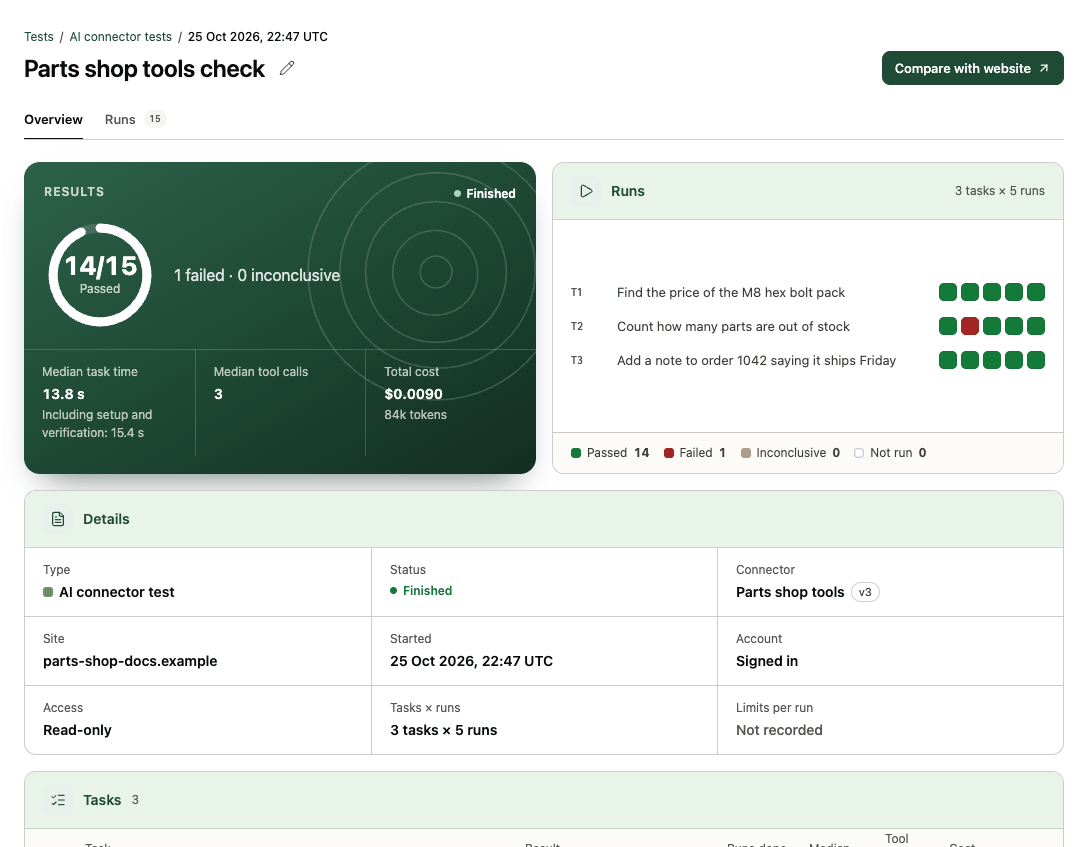
The report shows runs passed, median task time and median tool calls. In the replay, each step is a tool call with its input and output. Look for:
- Rejected arguments: the agent guessed a parameter wrong. Improve the parameter's description or add an example.
- Retries with different arguments, or giving up after an error: the error message didn't say how to fix the call.
- Answering after an empty read: the tool returned nothing useful, but the agent answered anyway.
- Scanning a list where a lookup tool existed: the lookup's description didn't make its purpose clear.
To fix a description, edit the tool on the connector page, publish the new version, serve it from Hosting, and run the test again.
Next: Compare your website and connector, or select Compare with website on the report.