Connect your sign-in provider
If any of your tools act on a person's own data (their orders, their account), people must sign in when an AI app first uses them. Transica sends them through the login you already have, so you don't create new accounts or passwords.
You need: a published connector whose tools need sign-in, and admin access to your sign-in provider's settings. Who: admins. Skip this if every tool is public.
How it works for your customers
- In ChatGPT or Claude, a person asks something that needs one of your signed-in tools.
- The AI app opens your connector's sign-in page: Transica's consent screen (with your logo and brand colour on Business and up), then your provider's normal login.
- They sign in as usual. From then on the AI app holds only a token bound to your connector; their provider tokens stay encrypted on the hosting service.
Tools that don't need sign-in keep working signed out. Consent is remembered for 30 days.
Set it up
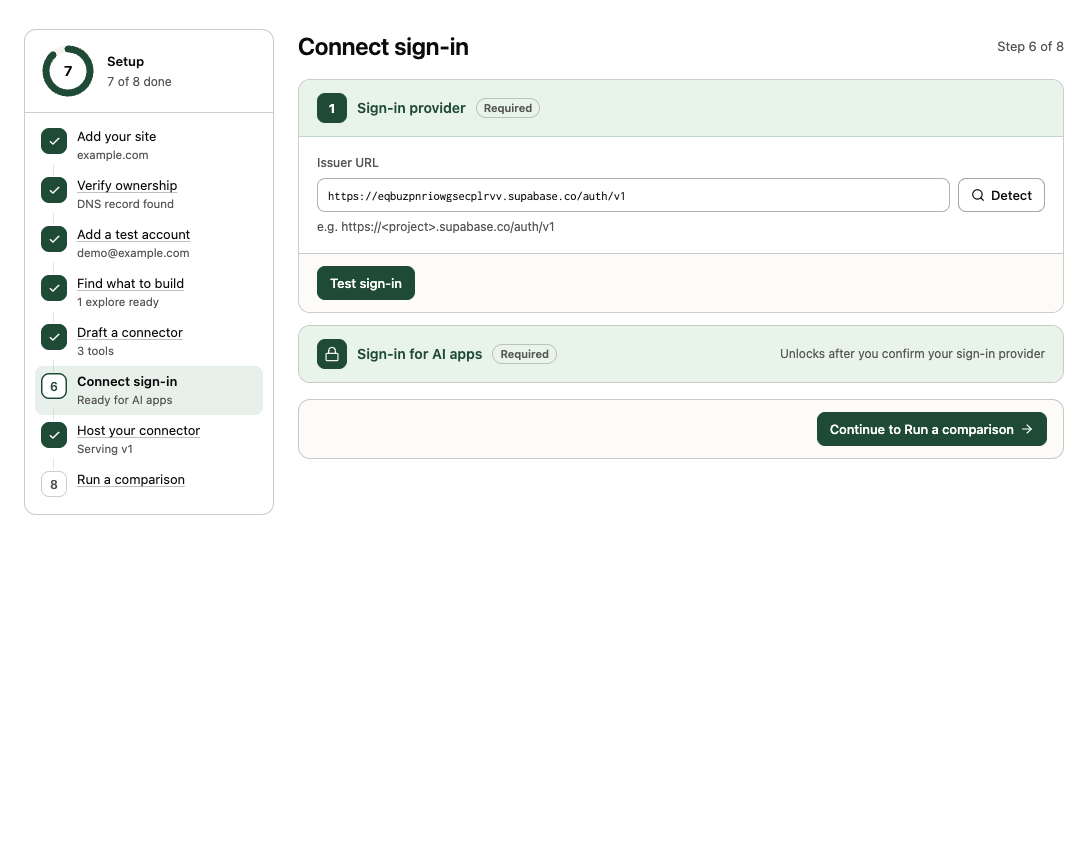
You can do this in guided setup, step 6 (Connect sign-in), or on Hosting → Sign-in.
- Find your provider. Transica tries to detect it from your site. Otherwise enter its Issuer URL, for example
https://<project>.supabase.co/auth/v1, and select Detect. - Follow the setup steps shown for your provider. Typically:
- turn on the authorization code flow with PKCE;
- set your API's audience or identifier;
- sign tokens with asymmetric keys (ES256 or RS256);
- publish the consent page where people approve an AI app's access (some providers);
- add the Callback URL Transica shows.
- Choose client registration: dynamic client registration, Client ID Metadata Document, or a client you create yourself (enter its Client ID and Client secret; the secret is kept only on the hosting service).
- Select Test sign-in. Each check shows Done, Needs confirmation or To do, with what to change.
- In guided setup, Sign-in for AI apps then unlocks: select Check again until every check passes. On Hosting, a passing check is used when you turn hosting on, or with Save and apply while it's on.
Supported providers
Supabase, Clerk, Auth0, WorkOS, Descope, Stytch, Better Auth, Logto, Keycloak and any other OAuth / OpenID provider, each in every registration method it supports. Each has its own setup steps in the product.
Brand the sign-in page
On Business and up, Hosting → Sign-in → Brand color sets the colour of the consent page's Allow button (Save color), and your listing's logo appears on the sign-in pages.
Per-tool sign-in
Each tool either requires sign-in or not (suggested from what the endpoint requires; adjust it on Hosting → Tool access). AI apps can list tools and call public ones signed out; the first call that needs sign-in gets a sign-in challenge. If an AI app handles that badly, turn on Ask for sign-in when the app connects under Hosting → Connect AI apps → Connection, so it signs in up front.
Start again
Reset sign-in in guided setup's step 6 clears the provider and checks. Turn hosting off first: AI apps sign in through it while it's live. On Hosting, Discard changes drops unsaved sign-in changes.
Next: Host your connector.