Tests
Where you start every kind of test and find every report. Tests run real AI agents on your verified site, through your connector, or both side by side.
Where: sidebar → Tests (/dashboard/sites/<site>/tests).
The page has five tabs: New test (the default), AI browser, AI connector, Comparisons and Task sets. View example tests at the top opens the example simulations.
New test
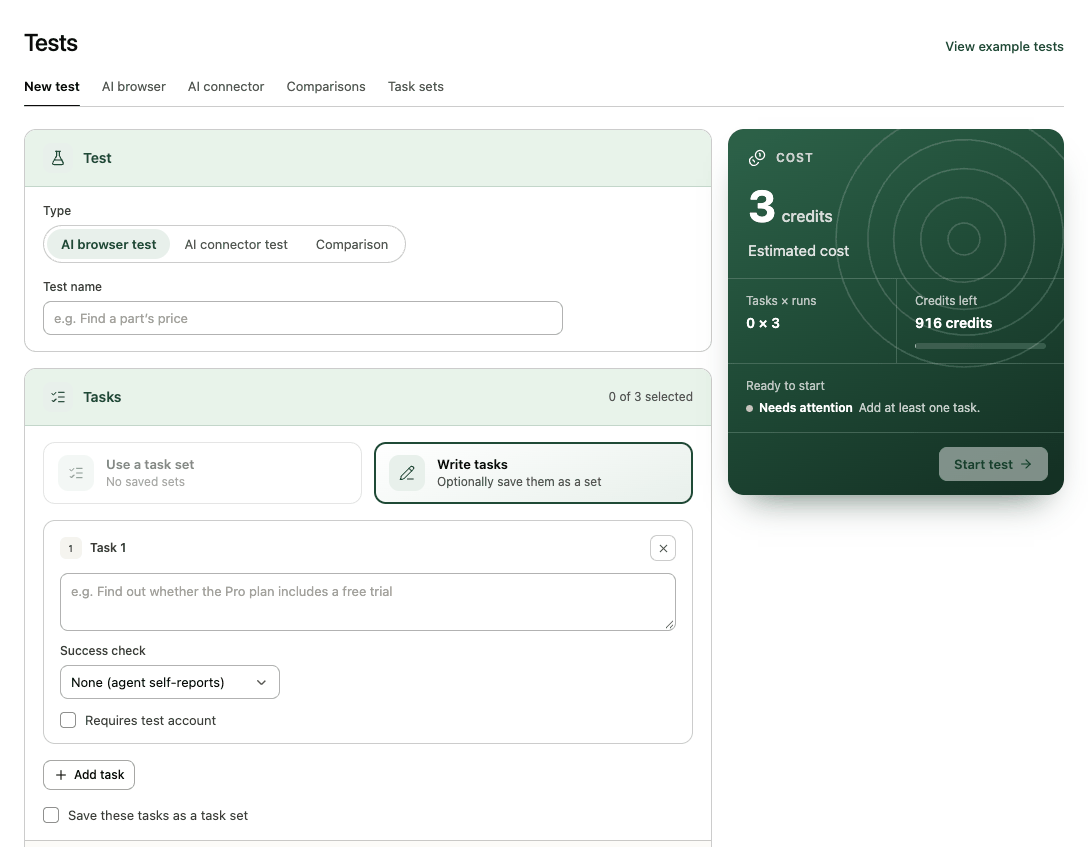
Test. Choose the Type:
| Type | What runs | Cost |
|---|---|---|
| AI browser test | An AI agent does each task on your website in a real browser. | 1 credit per run |
| AI connector test | An AI agent does each task with only a published connector's tools. | Free |
| Comparison | The same tasks through the website and the connector, several trials each, on up to 3 AI models. | 1 credit per website run (3 with Gemini 3.8 Flash); connector side free |
Every test needs a Test name (you can rename it later on its report). Connector tests and comparisons also need a Published connector, shown with its version and tool count.
For connector tests, a Connector card shows where the test will run: the Hosted address and its Mode (Public, no sign-in or Signed in as the test account). If the connector isn't hosted, or hosting serves a different version, it says so with a Host connector link; the test can't start until hosting serves the published version. Connectors from your own MCP server are called directly.
Tasks. Up to 3 per test (the card counts N of 3 selected). Either Use a task set (pick a set, then tick its tasks) or Write tasks. For each task:
- The task itself, in your customer's words.
- A Success check: None (agent self-reports), Answer mentions…, Reaches page… or Page shows text….
- Requires test account, if the task needs a signed-in user.
Comparisons only accept tasks with an answer check. A set task without one shows Add answer check, which saves the check to the set. Tick Save these tasks as a task set to reuse written tasks. Each run is limited to 20 steps and 4 minutes.
Settings depend on the type:
- Runs per task: 1, 3 or 5. More runs show how consistent the site is.
- Start page: where the agent begins.
- Sign in with a test account (Sign in as the account when the site has just one): uses one of the site's test accounts. Signed out, the agent only reads; signed in, it may make changes the task needs.
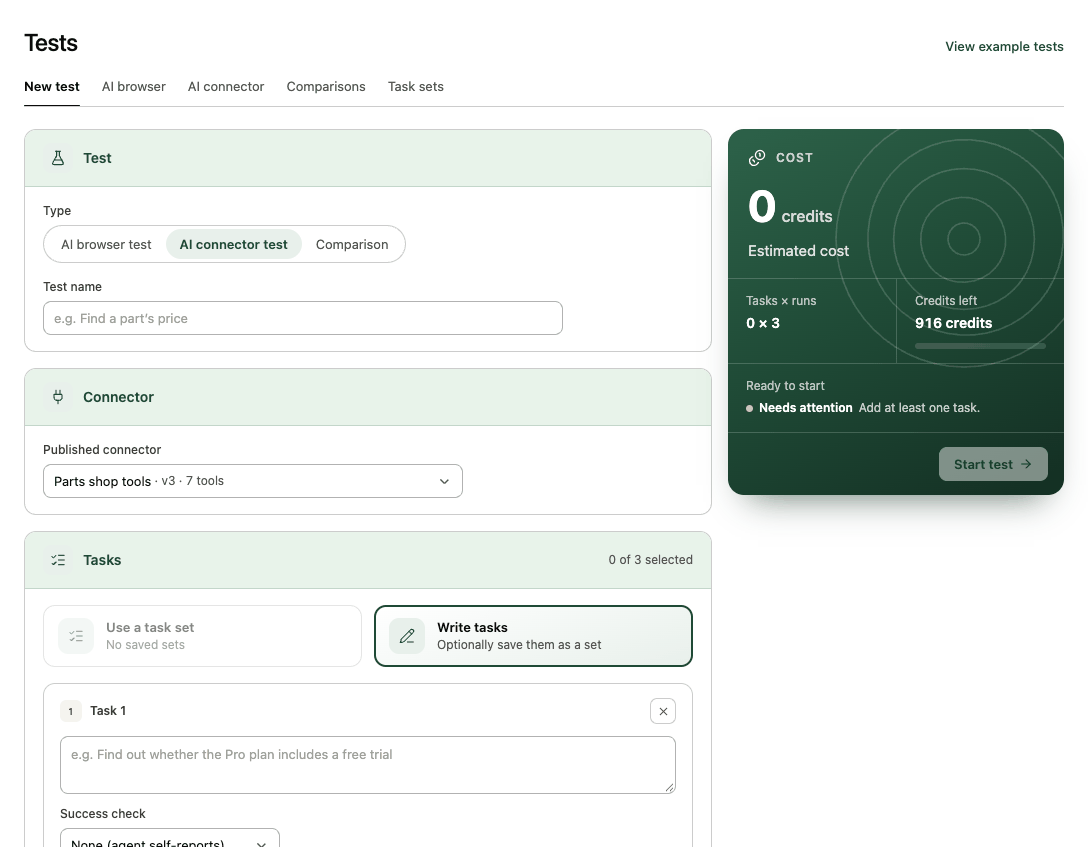
- Runs per task: 1, 3 or 5.
- Test account: the connector signs in as this account, like an AI app would. Not offered for public hosting or your own MCP server.
- Write tools: tools that change data run only if an admin ticks them here. With signed-in hosting, only the write tools hosting serves are listed.
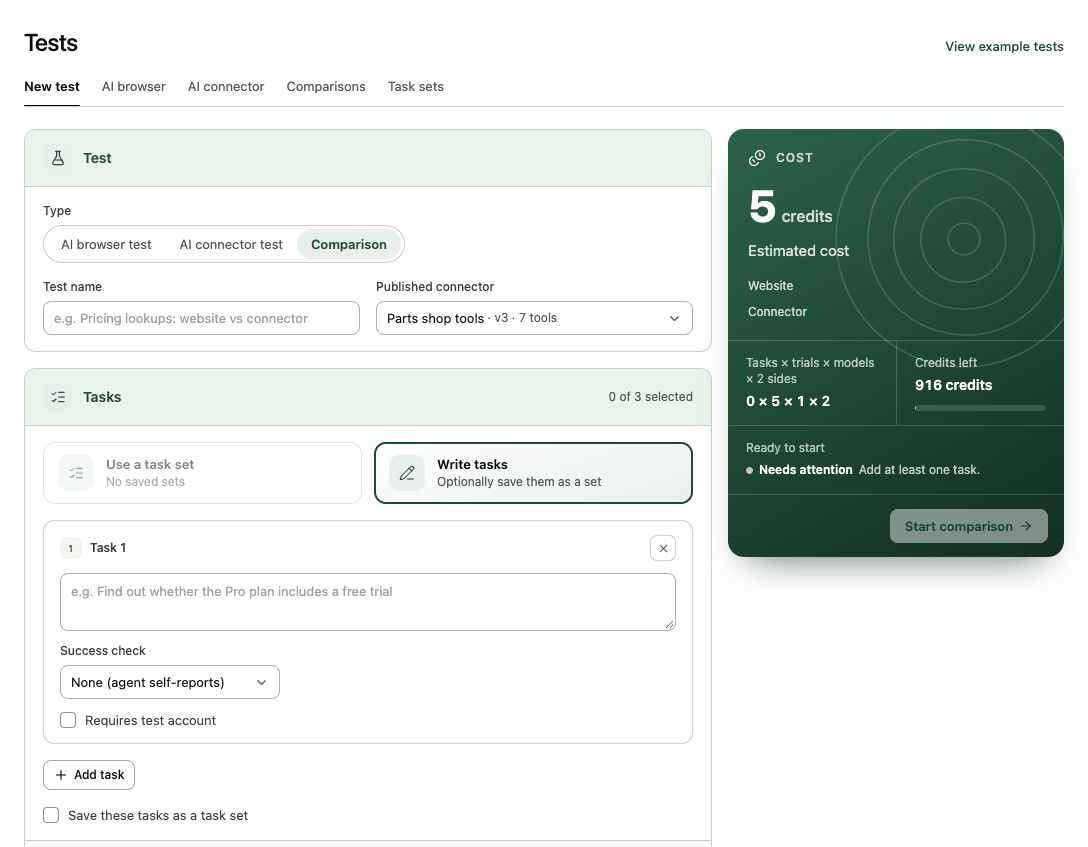
- Trials per side: 3 to 10 (5 recommended).
- AI models (up to 3): the same model drives both sides in each pairing. Offered: DeepSeek V4.1 Flash (the default), GPT-6 Luna, Claude Haiku 5.5, Gemini 3.8 Flash and GLM 5.3 Flash. The Free plan runs the default model only.
- Start page and Test account, as for browser tests.
- Allow changes (admins, connectors with write tools): lets agents use the connector's write tools and submit forms on the website. Records created are removed afterwards.
Cost. The Estimated cost in credits, Tasks × runs (or Tasks × trials × models × 2 sides) and Credits left. Ready to start says Ready, or Needs attention with what's missing (for example "Enter a test name."). Select Start test (or Start comparison). When you don't have enough credits, the button becomes Get more credits. Runs that don't start are refunded.
AI browser and AI connector
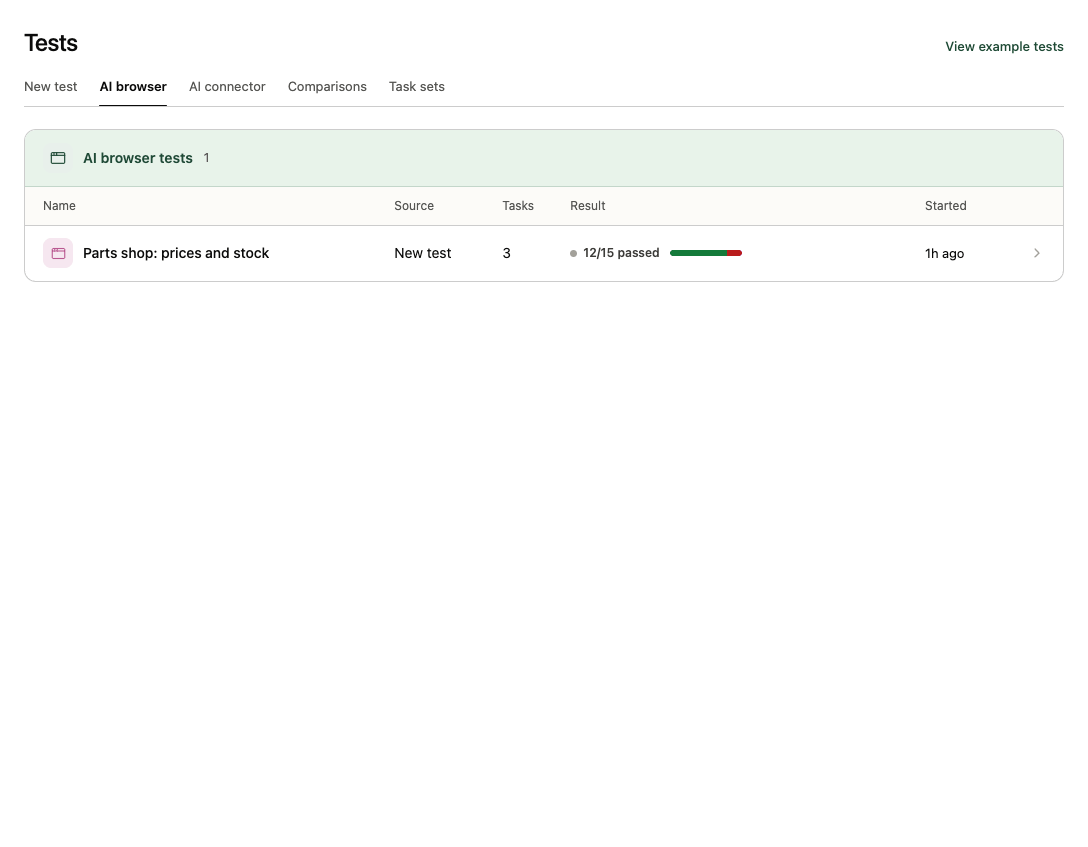
One row per test, newest first, with a result bar (passed, failed, unverified). AI browser has Name, Source (New test, or Explore for explores, listed here as one row each), Tasks, Result (for example 12/15 passed) and Started. AI connector shows the connector and version under each name and the first task under Tasks. Select a row to open its report.
Comparisons
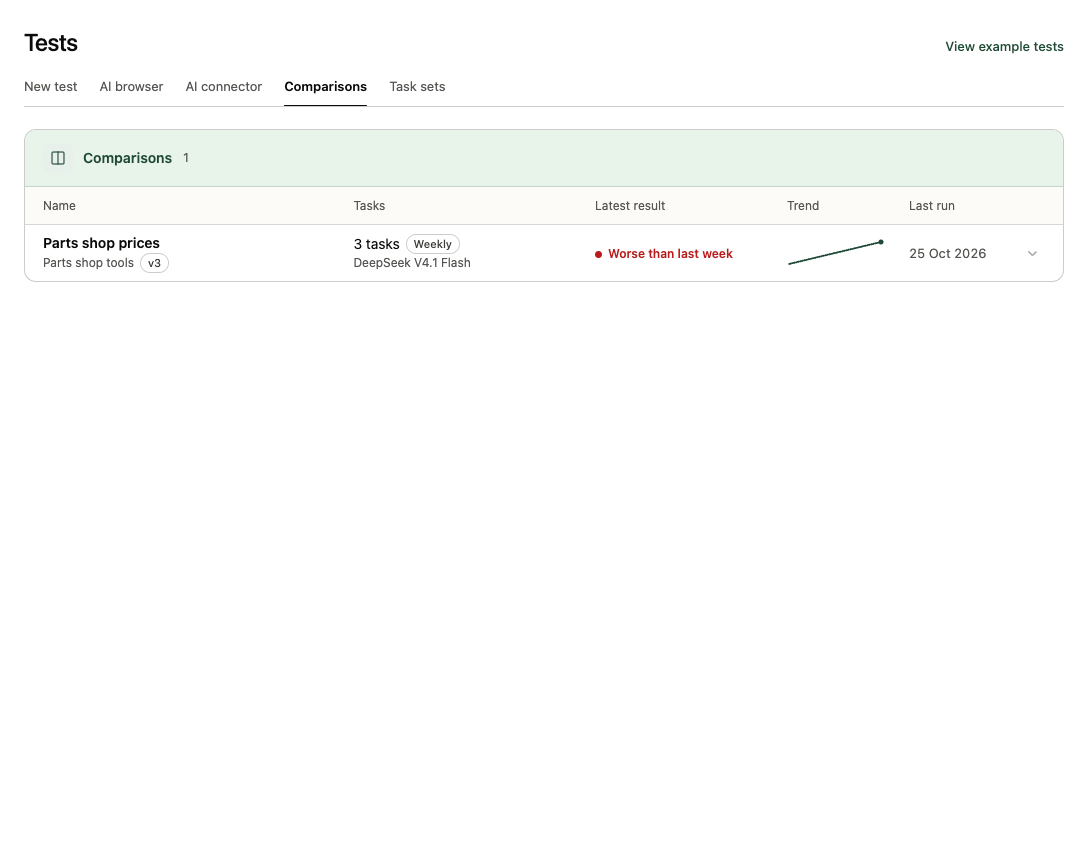
One row per connector and set of tasks: Name (with the connector and version), Tasks (the count, Weekly when it runs on a schedule, and the model), Latest result (for example Worse than last week or Not enough data), Trend (the speed-up over the last 8 runs) and Last run. Open a row to see the speed-up chart and every run of those tasks with its date, version and speed-up; select a run to open its comparison report.
Task sets
Named lists of up to 10 tasks, each with its success check and a Requires test account flag (up to 20 sets per site). The list shows Name, Tasks, With success checks and Updated. New task set creates one; tests and comparisons pick up to 3 tasks from a set. Deleting a set doesn't change tests that already used it. Guided setup's Test my users' tasks saves its tasks as the set Your users' tasks.
Example tests
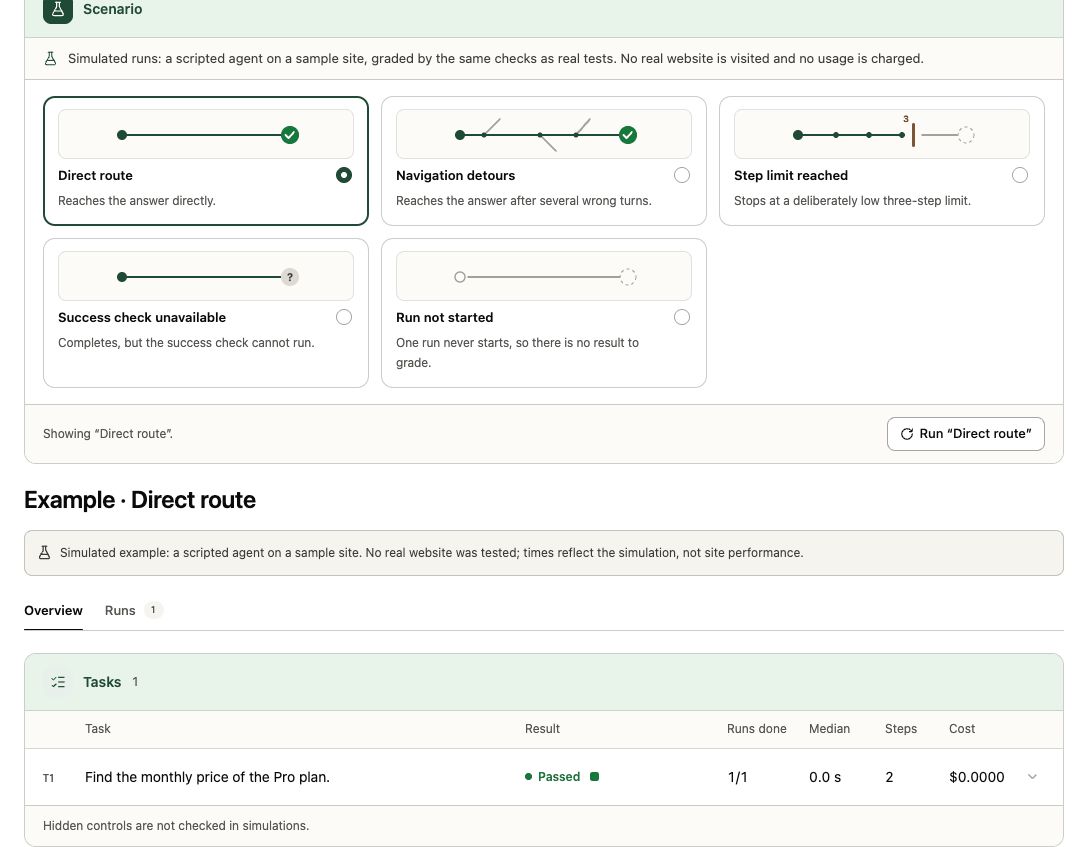
View example tests opens five scripted simulations on a made-up site, graded by the same checks as real tests: Direct route, Navigation detours, Step limit reached, Success check unavailable and Run not started. Pick one and select Run example. No real website is visited and nothing is charged; it's the quickest way to learn how a report reads.