Dashboard and navigation
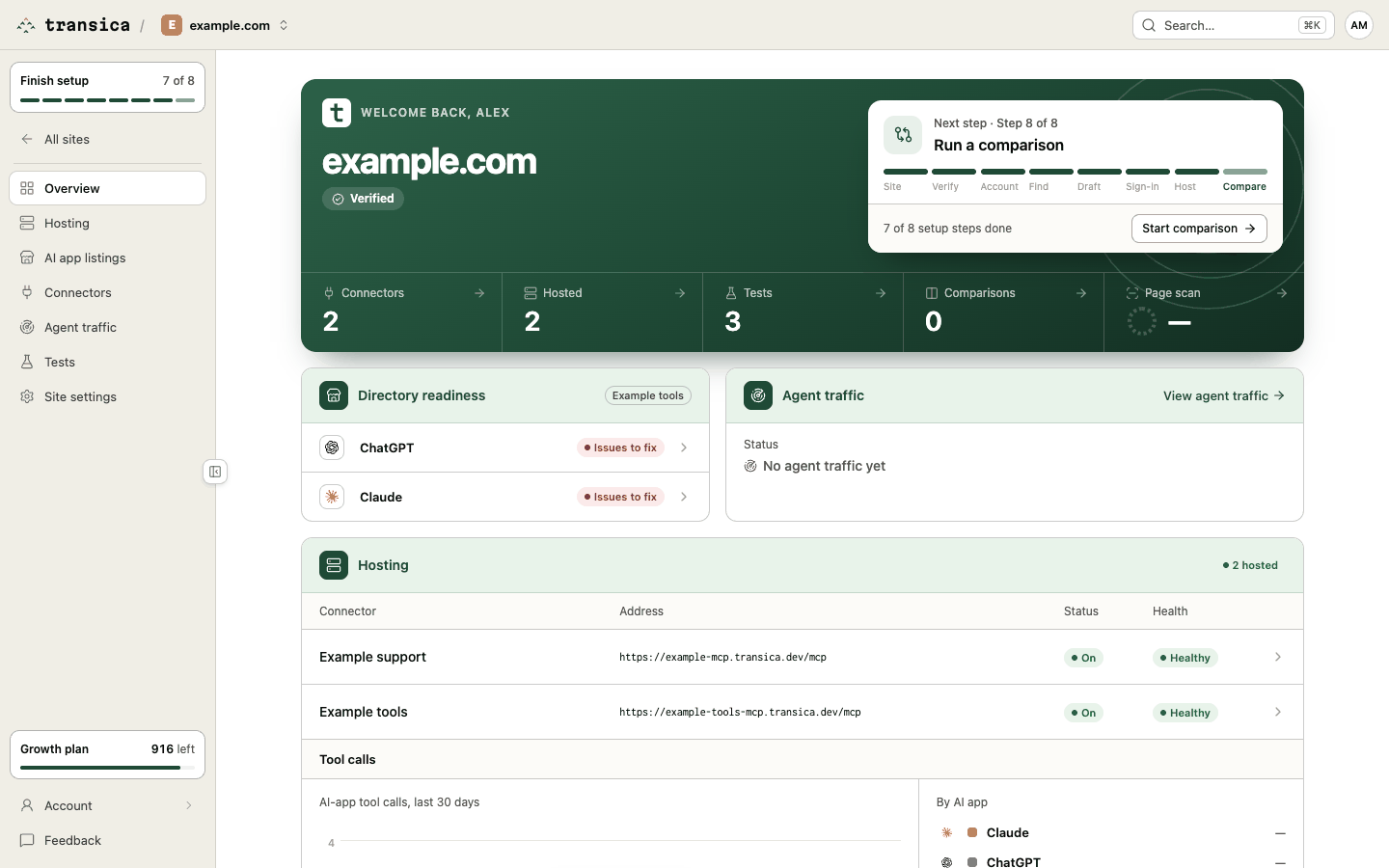
The frame around every signed-in page: the top bar, the sidebar and quick search.
Top bar
From left to right:
- transica: the logo; takes you to the dashboard.
- Organization switcher: shows Personal account or the organization you're in. Open it to switch organizations, or Create organization to start a team one.
- Site switcher: the current site. Open it to jump to another site, All sites or Add site.
- Search… (Ctrl K / ⌘K): quick search. Type to jump to any page of this site (a section, Finish setup, New test), another site, Add site, an account page or Try an example.
- Your initials: the account menu, with your email, the organization and your role in it, Account settings, Members, Audit log, Try an example and Sign out.
Sidebar
Inside a site, from top to bottom:
| Item | What it does |
|---|---|
| Finish setup · n of 8 | Guided-setup progress for this site, one segment per step. Opens guided setup at the next step. Disappears when setup is complete. |
| All sites | Back to the Sites list. |
| Overview | The site's home. |
| Hosting | Hosting for this site's connectors. |
| AI app listings | ChatGPT and Claude listings. |
| Connectors | All connectors and New connector. |
| Agent traffic | AI agent visits and connector calls. |
| Tests | New test, reports, comparisons and task sets. |
| Site settings | Ownership, test accounts, page scan. |
At the foot:
| Item | What it does |
|---|---|
| Plan chip | Your plan and the test credits left this period (for example Maker plan · 42 left), over a meter. Opens Billing. |
| Account | Opens to Profile, Members, Audit log and Billing. |
| Feedback | Send us a note. |
Before you've added a site, the sidebar offers Add your site and Try an example instead of the site sections.
The button on the sidebar's edge collapses it to icons (Collapse sidebar / Expand sidebar). On a phone, the menu button opens the sidebar as a drawer, with search and the organization switcher inside it.
When your account is paused
If your account is suspended (a payment failed, or it has more sites or live apps than the plan allows for over 7 days), a red note sits at the top of every page except Billing. It says what's paused and what to do, with Go to Billing. See Manage your plan and credits.
Conventions you'll see everywhere
- Status is an icon plus a coloured word: Verified, Live, Healthy, Not checked.
- Facts sit in a labelled grid (label above, value below).
- Destructive actions (remove, delete) sit in their own panel at the bottom of the page and ask you to confirm in a dialog.
- Admin-only controls are greyed for members and viewers, with a note saying why.