Transica connector
Use Transica from Claude, ChatGPT or any MCP client. Transica's own MCP server offers both free tools, so you can ask your assistant "Scan https://example.com for AI agent readiness" in a chat.
Server address: https://transica-mcp.transica.dev/mcp (Streamable HTTP, no sign-in). It's listed in the official MCP Registry as dev.transica/transica.
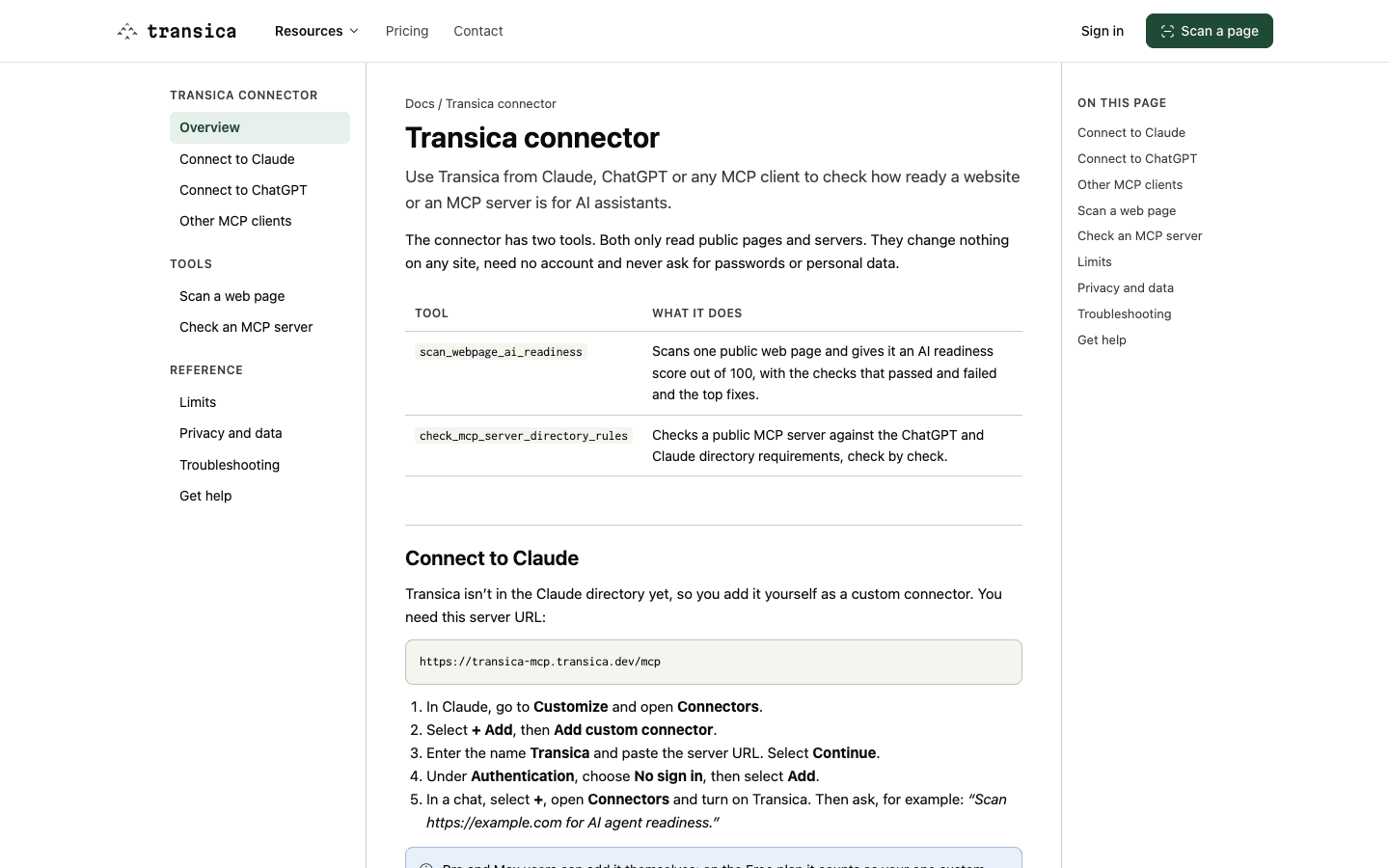
| Tool | What it does |
|---|---|
scan_webpage_ai_readiness |
Scans one public web page and gives it an AI readiness score out of 100, with the checks that passed and failed and the top fixes. Input: url. |
check_mcp_server_directory_rules |
Checks a public MCP server against the ChatGPT and Claude directory requirements, check by check. Input: url. It never calls the server's tools. |
Both tools only read public pages and servers, change nothing, need no account and never ask for passwords or personal data. Scans and checks run through the connector aren't stored.
Each reply includes a link to the full report. The link doesn't open a saved copy: it runs the scan or check again on transica.dev (/tools/ai-readiness-scan?url=… or /tools/mcp-directory-check?url=…), so it always shows the page or server as it is now.
Add it to your AI app
Transica is added as a custom connector.
- In Claude, go to Customize and open Connectors.
- Select + Add, then Add custom connector.
- Enter the name
Transica, paste the server address and select Continue. - Under Authentication, choose No sign in, then select Add.
- In a chat, select +, open Connectors and turn on Transica.
Pro and Max users can add it themselves; on the Free plan it counts as your one custom connector. On Team and Enterprise, an owner adds it in Organization settings → Connectors.
Until Transica is in the ChatGPT app directory, add it as a custom MCP server, on the web or in the app. In a company workspace, an admin may need to allow it.
- In ChatGPT, open Plugins from the home screen. (In the app, Plugins under Settings can only add an MCP server, not a plugin.)
- Select +, then Add custom MCP server.
- Enter the name
Transica, paste the server address under Connection and choose no authentication. - Read the warning, tick I understand and want to continue, then select Create as a plugin.
- In a new chat, type
@and pick Transica.
claude mcp add --transport http transica https://transica-mcp.transica.dev/mcp
Any client that supports remote MCP servers over Streamable HTTP works the same way.
Limits
- Each call reads one page or one server. Scans that take longer than about 12 seconds return status
runningwith the report link; open it after a minute to run the scan again and see the result. - Up to 5,000 scans and 5,000 checks a day through the connector, for all users together; after that, try again after midnight UTC.
- Only public addresses work. Private networks,
localhostand addresses that need a sign-in are refused.
Note
The connector has been submitted to both the Claude and ChatGPT directories. Until it's listed there, add it as a custom connector as above.