Add and verify your site
Add your website to Transica and prove you control its domain. Verification is required before any agent test, explore or connector build touches your site.
You need: access to your site's HTML, its web server, or its DNS. Who: members and admins.
Add the site
- In the dashboard, go to All sites and select Add site (or choose Add site in the site switcher in the top bar).
- Enter the Site address, for example
https://example.com, and select Add site.
You're taken to step 2 of guided setup. Your plan sets how many sites you can add.
Verify ownership
Pick one method. All three use the same verification code, shown on the page.
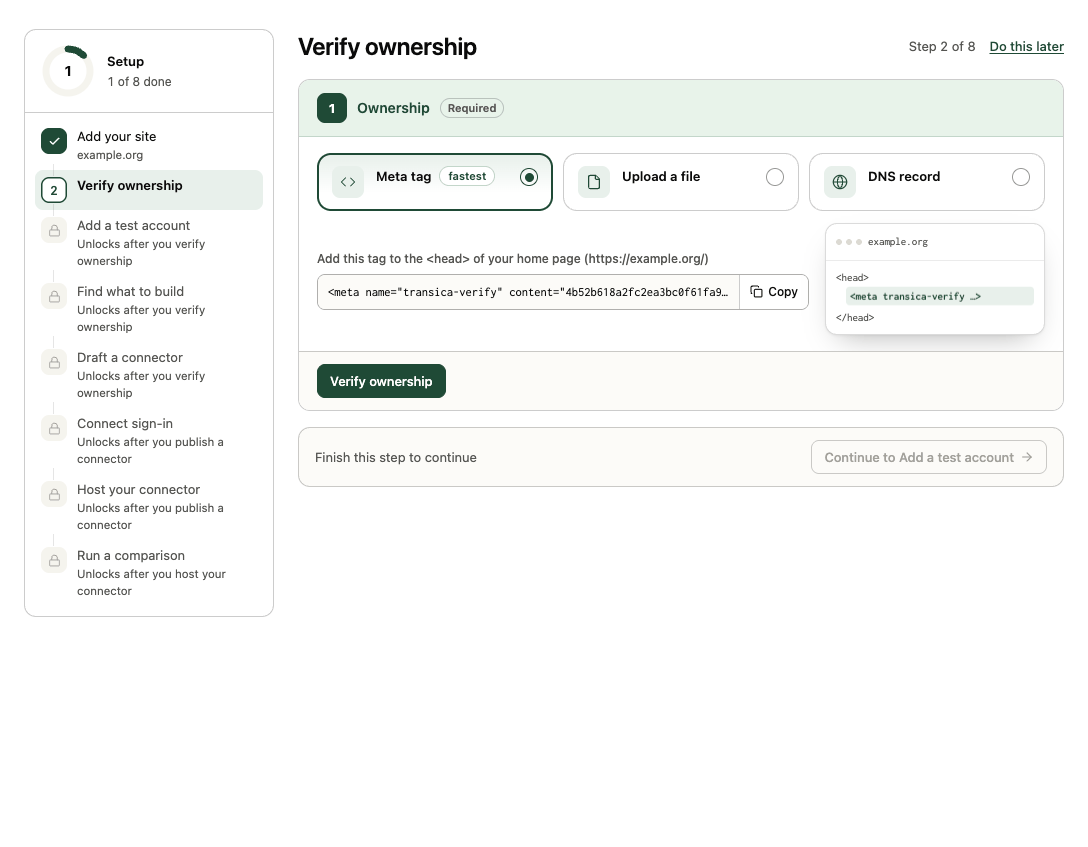
- Copy the tag, for example
<meta name="transica-verify" content="15ebd5…">. - Add it to the
<head>of your home page and publish. - Select Verify ownership.
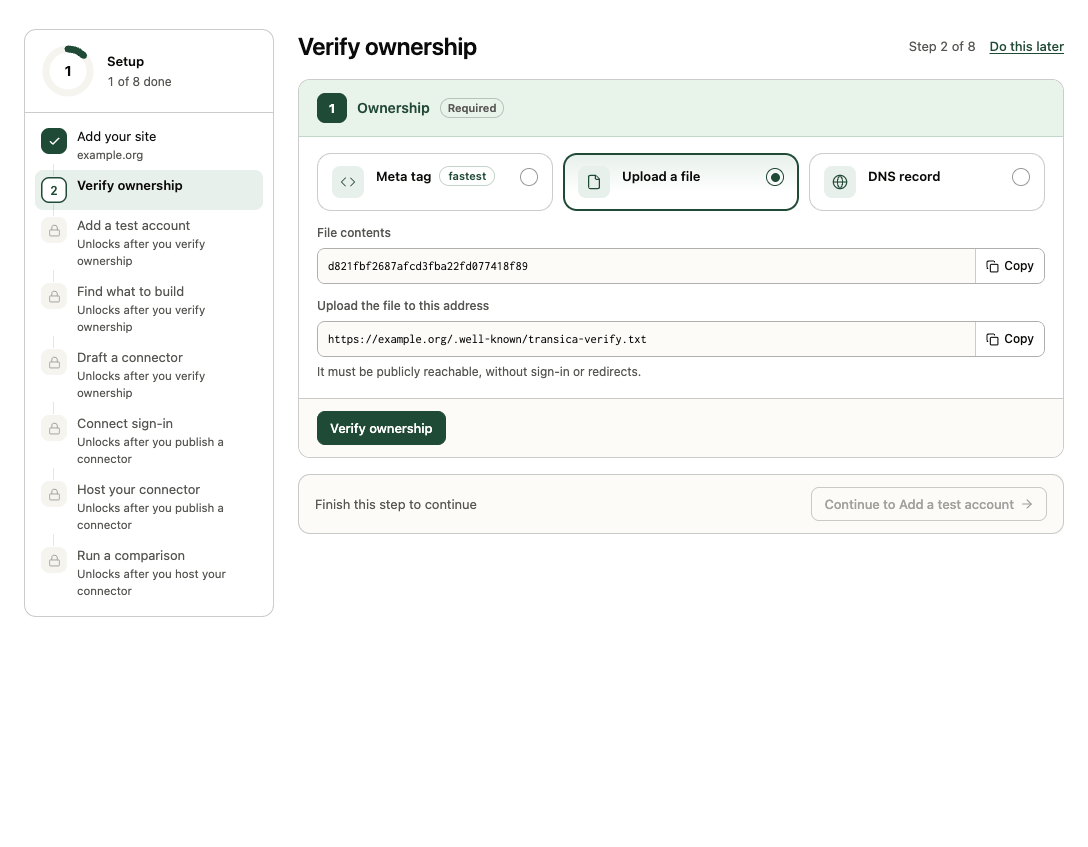
- Create a file containing just the code.
- Upload it so it's served at
https://yoursite.com/.well-known/transica-verify.txt, publicly, without sign-in or redirects. - Select Verify ownership.
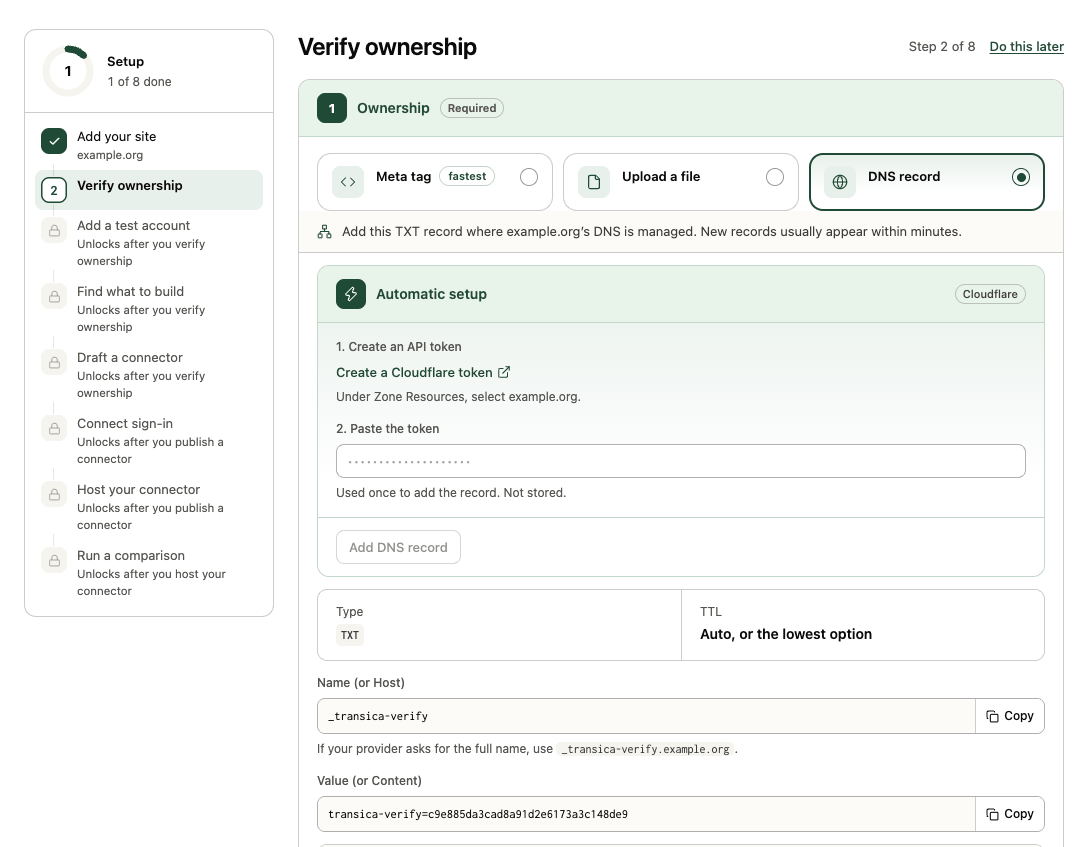
Add a TXT record where your domain's DNS is managed:
| Type | Name (or Host) | Value (or Content) | TTL |
|---|---|---|---|
| TXT | _transica-verify |
transica-verify=<your code> |
Auto, or the lowest option |
If your provider asks for the full name, use _transica-verify.yoursite.com. Where to find DNS settings has the steps for Cloudflare, GoDaddy and Namecheap. New records usually appear within minutes; then select Verify ownership.
Add it automatically (admins): we look up where your DNS is managed.
- If your provider supports one-click setup, select Sign in to your provider and approve the one record. You come straight back and we check it for you. Nothing else in your DNS changes.
- On Cloudflare, under Automatic setup: Create a Cloudflare token (DNS edit rights for your zone), paste it and select Add DNS record. The token is used once and not stored.
When the check passes, the Ownership card shows what was found (for example DNS record found), and the rest of setup unlocks.
Keep it verified
Verification is re-checked before every test. Leave the tag, file or record in place; if it disappears, tests stop with a message until you verify again from Site settings → Ownership.
Troubleshooting
- Tag not found: make sure it's in the served HTML of the exact home page shown (view source, not the browser's inspector), and that a cache or CDN isn't serving an old copy.
- File not found: the address must answer
200directly, with no redirect to another page or a sign-in. - DNS not found yet: DNS can take a while to spread. Check the record name doesn't end up doubled (
_transica-verify.yoursite.com.yoursite.com).
Next: Add a test account or Explore your site.