Connect Claude, ChatGPT, Codex or Cursor
Use your hosted connector in your own AI app before it's listed in any directory. Hosting gives you copy-paste steps with your address filled in.
You need: a hosted connector. Open Hosting → Connect AI apps and pick the app. The address below is https://<name>-mcp.transica.dev/mcp, or your own domain if you've set one up; Hosting shows the exact one.
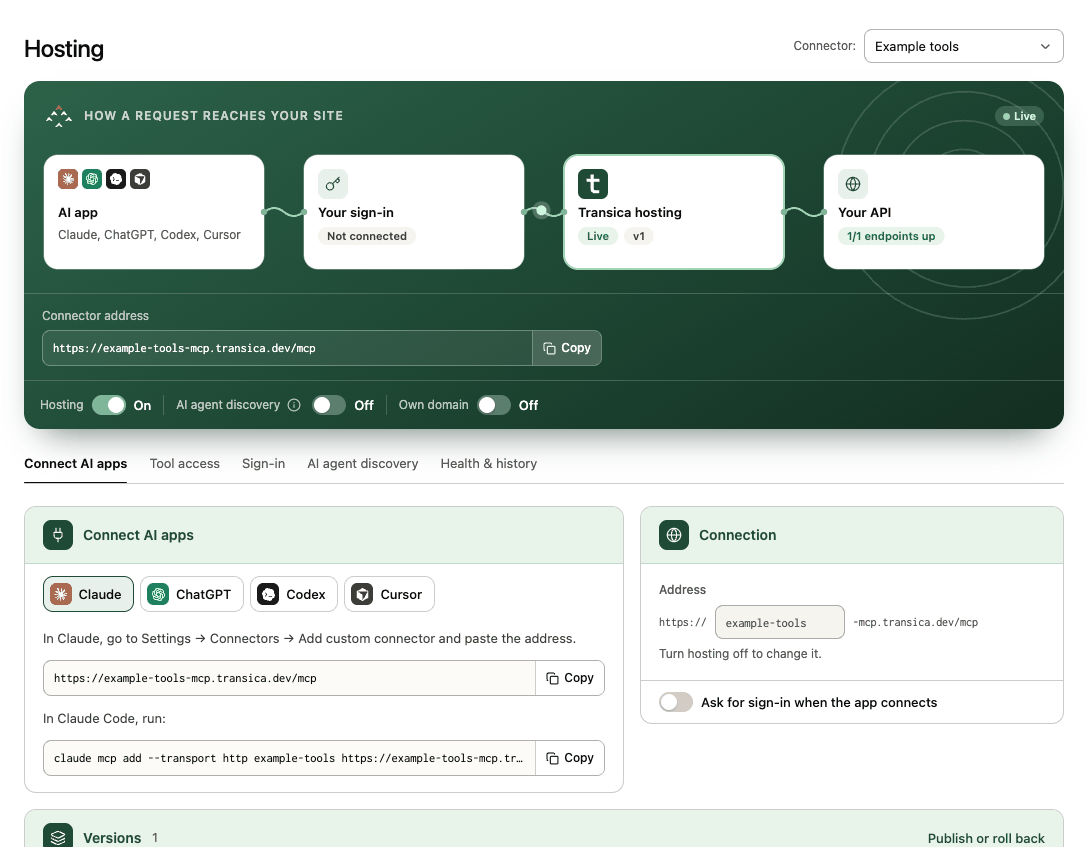
In Claude, go to Settings → Connectors → Add custom connector and paste the connector address. If tools need sign-in, Claude asks you to connect (up front, or the first time it uses such a tool).
In Claude Code, run:
claude mcp add --transport http <name> https://<name>-mcp.transica.dev/mcp
If tools need sign-in, run /mcp in Claude Code to sign in.
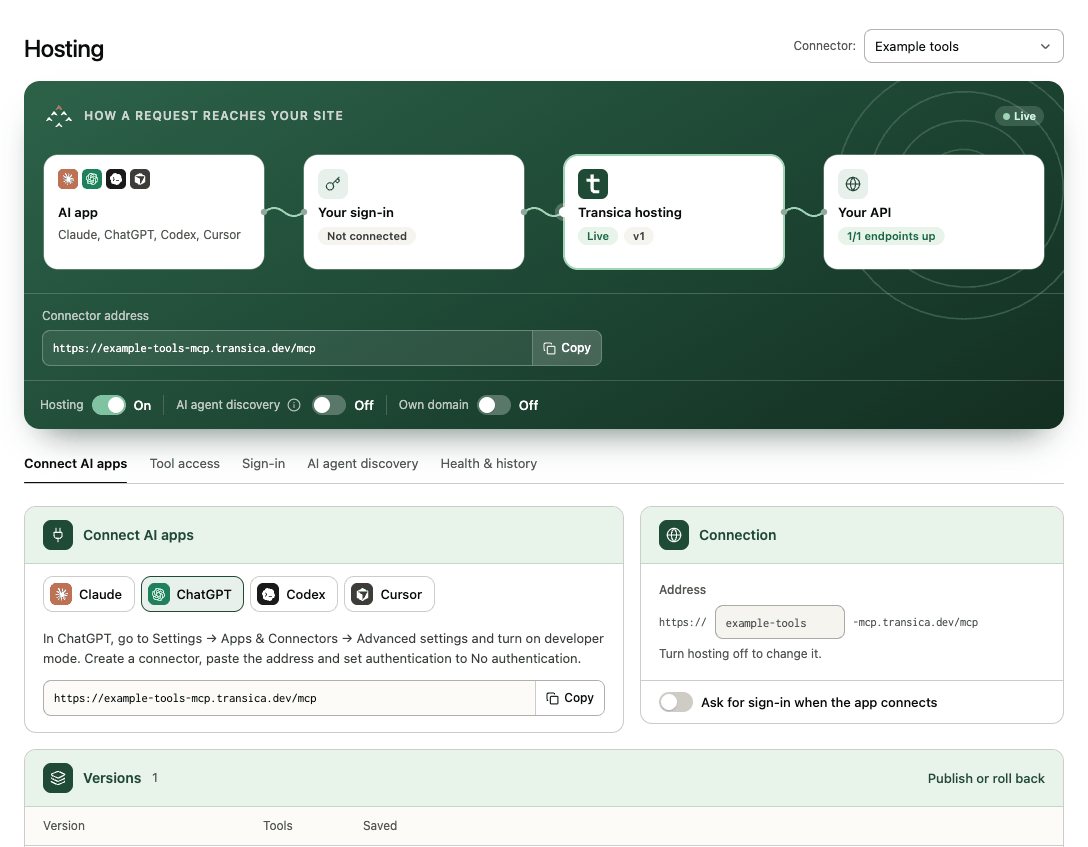
In ChatGPT, go to Settings → Apps & Connectors → Advanced settings and turn on developer mode. Create a connector, paste the address and set authentication as the Hosting page says:
- No authentication when no tool needs sign-in;
- Mixed authentication when some tools need sign-in (per-tool sign-in);
- OAuth when you've turned on Ask for sign-in when the app connects.
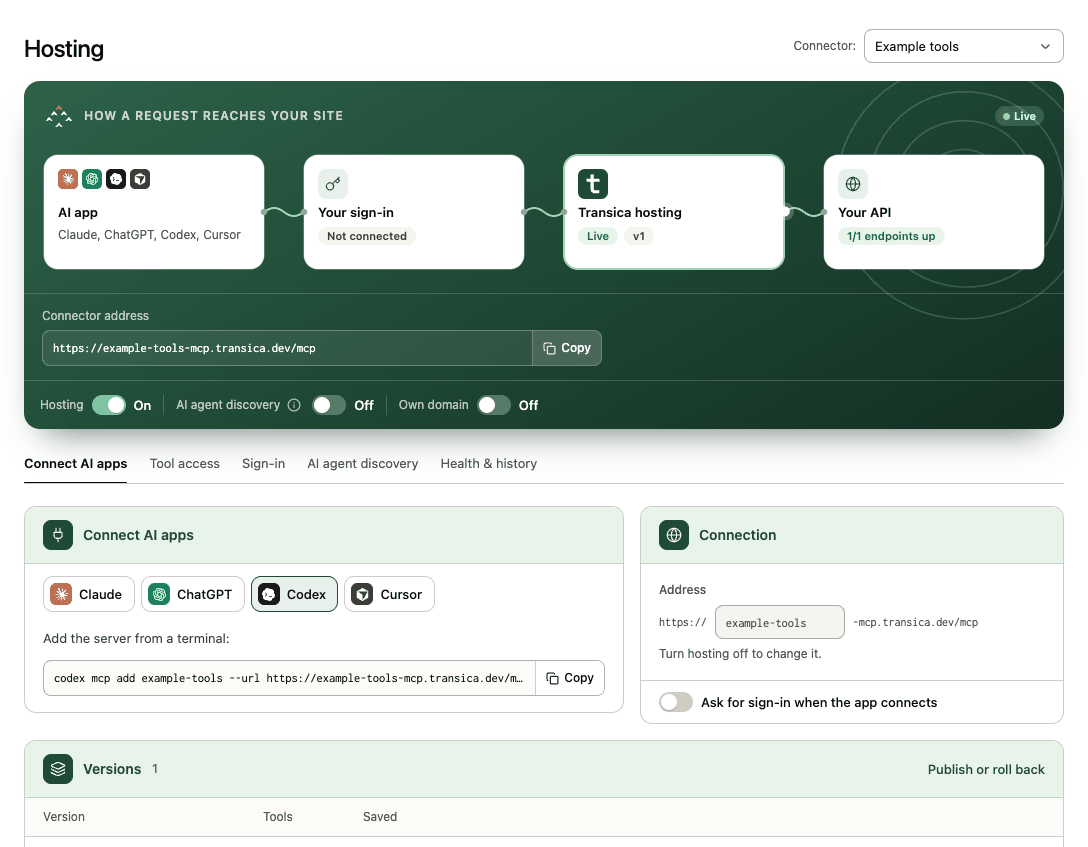
Add the server from a terminal:
codex mcp add <name> --url https://<name>-mcp.transica.dev/mcp
If tools need sign-in, sign in with:
codex mcp login <name>
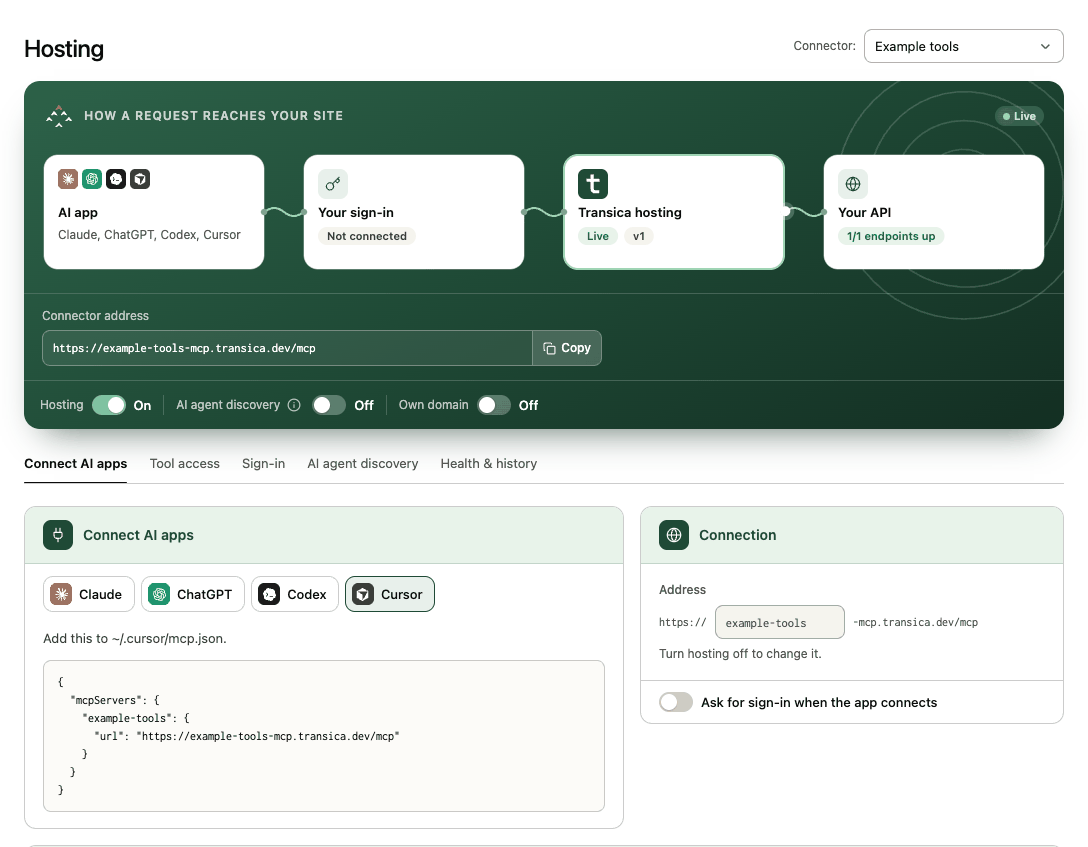
Add this to ~/.cursor/mcp.json:
{
  "mcpServers": {
    "<name>": {
      "url": "https://<name>-mcp.transica.dev/mcp"
    }
  }
}
With Ask for sign-in when the app connects on, choose Needs login under Settings → MCP. Cursor may not prompt for sign-in when a single tool needs it; if those tools fail, turn that switch on.
Try it
Ask the AI app something your tools answer, for example "What subscription plans does Example offer?". If a tool needs sign-in, the app opens your connector's sign-in page the first time.
Each call shows up in Usage on the connector page and in Tool calls on the site overview, by AI app (Claude, ChatGPT, Cursor, Codex or other). Transica records the tool, outcome, latency and argument names, never argument values, results, tokens or IP addresses.
Menus move
AI apps rename their settings often. If a menu above doesn't match, look for "connectors", "apps", "plugins", "MCP" or "developer mode" in the app's settings; the address and authentication choice stay the same.