Get listed in ChatGPT
Prepare and submit your connector to the ChatGPT app directory (OpenAI calls listed apps plugins). Transica checks it against OpenAI's published rules, runs the test cases OpenAI asks for, and builds the plugin ZIP you upload. You submit under your own OpenAI developer identity; approval is OpenAI's call.
You need: a published connector, hosted by Transica (or on your own server at a public HTTPS address); a verified OpenAI developer identity; a privacy policy, terms and support page; and, if tools need sign-in, a reviewer test account without multi-factor prompts. Who: members and admins.
Open AI app listings, select the connector, then Get started (or Continue) on the ChatGPT card. Work through the seven steps; each shows its state and you can move freely between them.
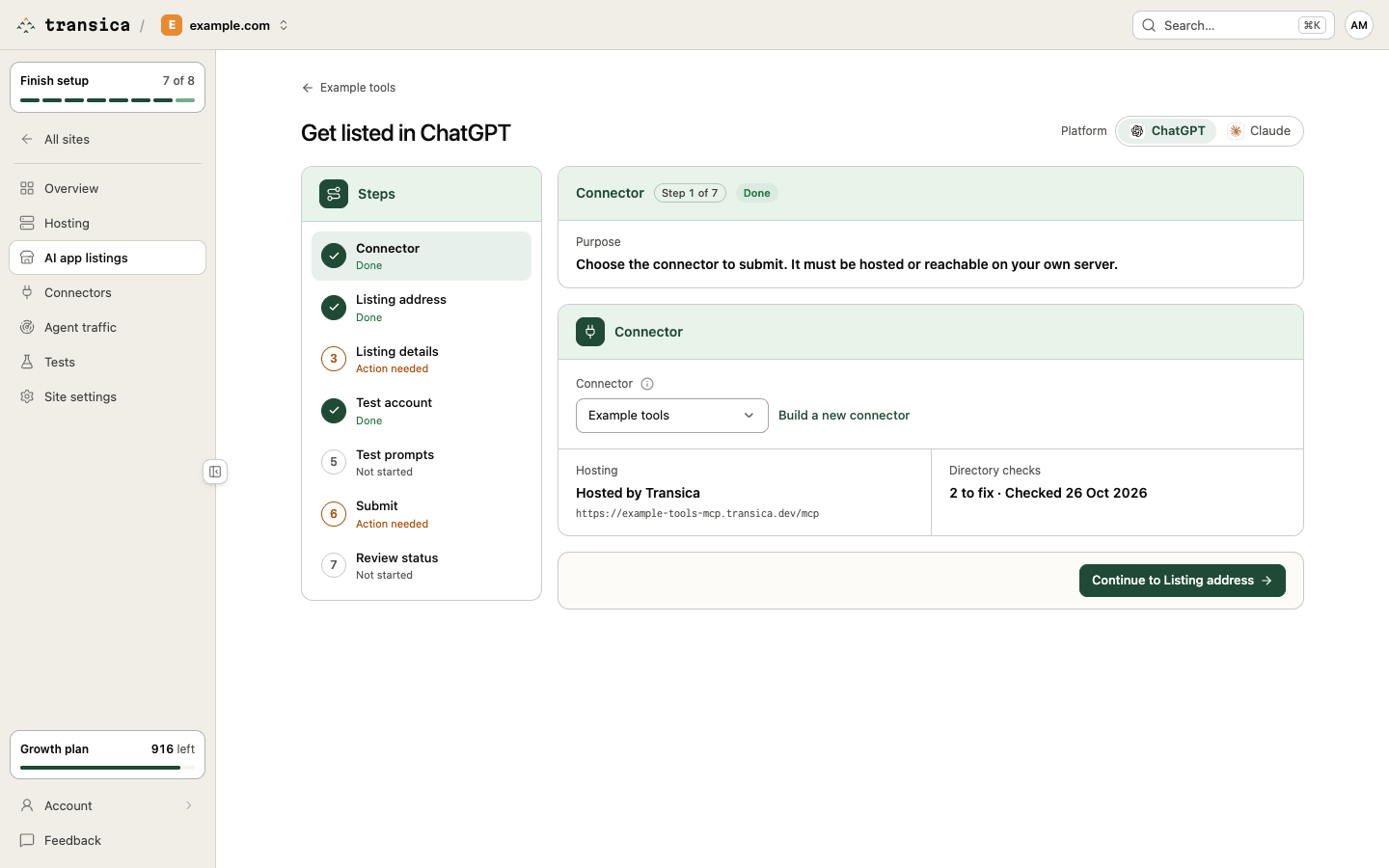
Steps
- Connector. Confirm the connector and where it's hosted. Note the directory-check summary.
- Listing address. Check the address ChatGPT will use:
https://<name>-mcp.transica.dev/mcp, or on Business and up your own domain (set it up with Change on Hosting → Own domain). The listing must have its own hostname over HTTPS. -
Listing details. Fill the three parts, with Next between them:
- Basics: logo (square), name (30 characters or fewer, without "MCP" or "Plugin"), subtitle (30 or fewer), description (4,000 or fewer, no superlative claims), exactly one category.
- Links: website, privacy policy, terms of service and support; each must load.
- Review details: developer name (must match your verified OpenAI identity), release notes for this version; countries and keywords are optional.
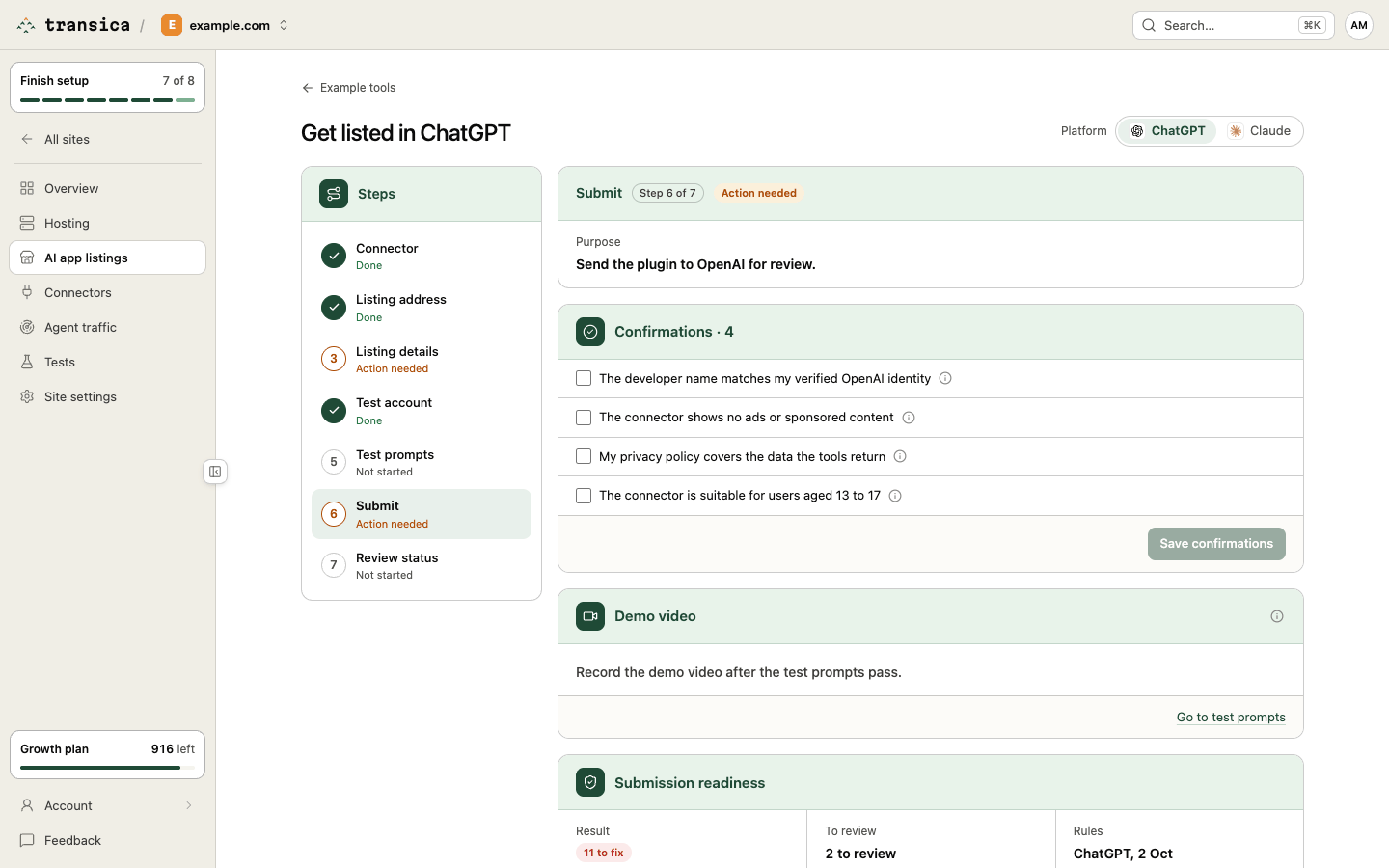
A draft from your site fills empty fields. Avoid prices, plans, subscriptions and promotions in the listing text: they fail OpenAI's rule. Naming another AI assistant or platform gets a low-level note. The description must only claim what your tools do (an AI-assisted check flags mismatches; it may be wrong). 4. Test account. Pick the account OpenAI's reviewers will use and select Save test account. Skip if no tool needs sign-in. 5. Test prompts. OpenAI asks for exactly 5 positive and 3 negative test cases. Set the expected tools for each positive prompt, tick up to 3 to Show as starter prompts (128 characters each), and select Run tests. Runs use an OpenAI model and count against your plan's monthly directory test prompts (prompts that never got an answer are returned). Re-run after any change until every prompt passes. 6. Submit. 1. Tick the Confirmations (including, when tools need sign-in, that reviewers can sign in without MFA, SMS or email codes) and select Save confirmations. 2. Record the Demo video: once the prompts pass, Before you record shows how to add the connector to ChatGPT as a custom MCP server (with the address and logo to copy), and Record these prompts lists the passing cases. Upload the video (for example as an unlisted video) and paste the link. 3. Clear everything under Ready to submit; All checks lists every rule with its source. 4. Work through Submit to ChatGPT: 1. Download the plugin ZIP. It's available once checks, confirmations, the video, release notes and the logo are in place. 2. Upload it to OpenAI at platform.openai.com/plugins. 3. Verify the domain: paste the token OpenAI shows, Save token, then Verify. Transica serves it at
/.well-known/openai-apps-challengeon your listing address. 4. Reviewer sign-in (when tools need sign-in): copy the login URL, username and sign-in steps into OpenAI's reviewer credentials form. Enter the password yourself. 5. Submit for review at OpenAI, then select Mark as submitted to ChatGPT. This locks the listing address. 7. Review status. Record OpenAI's status as it changes (In review, Changes requested, Approved, Published…), with notes and the listing URL once live.
After you're listed
- Keep the connector hosted and healthy: OpenAI tests listed apps, and health checks alert you within 15 minutes of a failure.
- When you publish a new version, Review before publishing shows what each change does to the listing; a change that breaks one of OpenAI's rules can't be published until it's fixed. Serve it with Go live with vN on Hosting.
- When you change tools, re-run the test prompts; record the demo again if they changed.
- On Business and up, rules-change alerts email you when OpenAI's published rules change in a way that may affect your listing.
Read more: ChatGPT app directory guide on transica.dev.