Get listed in Claude
Prepare your connector for the Claude connectors directory. Transica checks it against Anthropic's published requirements, runs your test prompts, and gives you every field the submission portal asks for, step by step, ready to copy. You submit; approval is Anthropic's call.
You need: a published connector at a public HTTPS address (hosted by Transica or your own server), a privacy policy, support and documentation pages, and, if tools need sign-in, a fully populated reviewer account. Who: members and admins.
Open AI app listings, select the connector, then Get started (or Continue) on the Claude card, or switch to Claude at the top of Get listed.
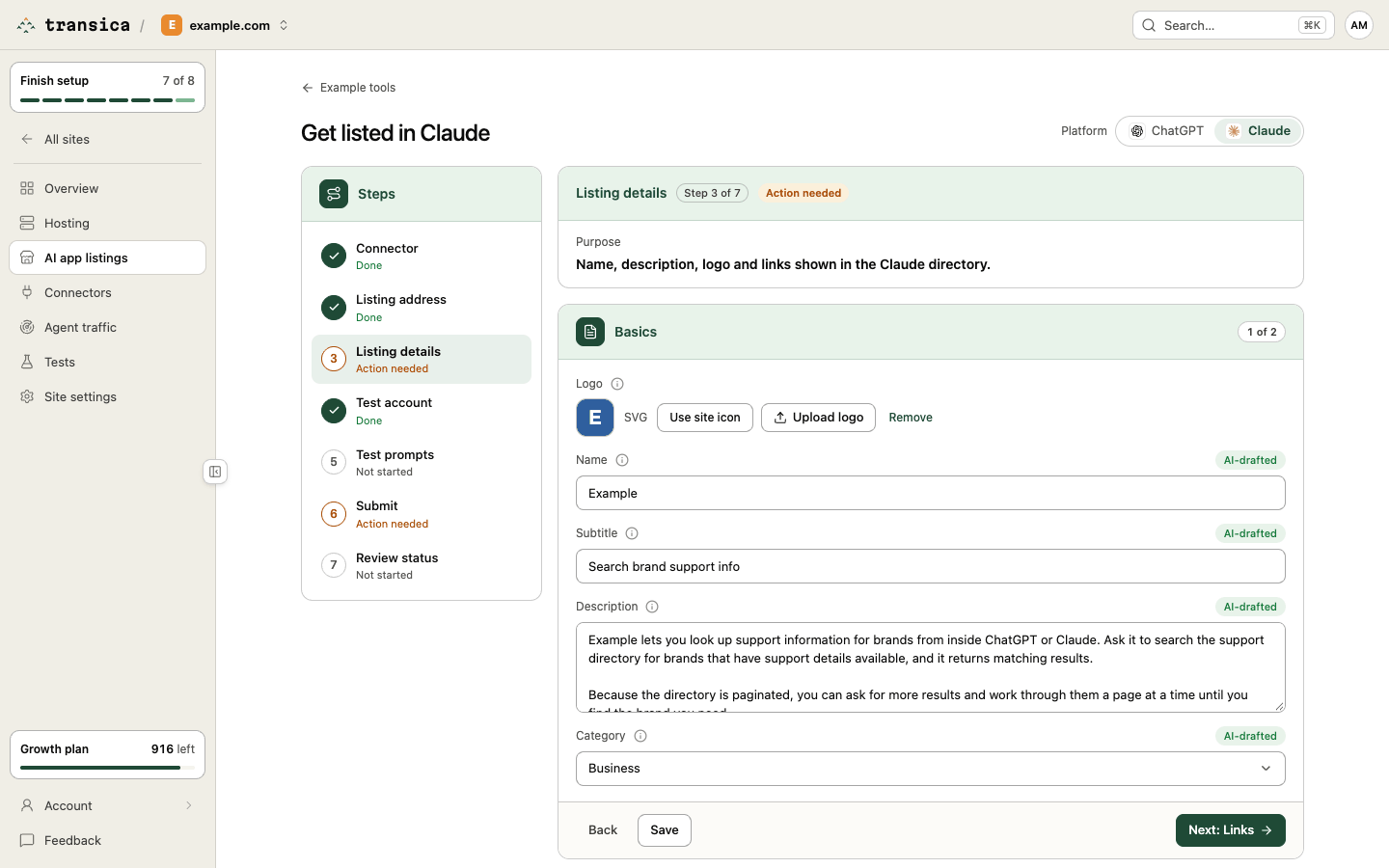
Steps
- Connector. Confirm the connector and its hosting.
- Listing address. Check the address Claude will use:
https://<name>-mcp.transica.dev/mcp, or your own domain on Business and up (set it up with Change on Hosting → Own domain). - Listing details. Two parts:
- Basics: a square logo, name (100 characters or fewer), one-liner (200 or fewer), description (2,000 or fewer), one to five categories.
- Links: privacy policy, support and documentation; each must load.
- Test account. Claude asks for a fully populated account, with every link, credential and step a reviewer needs. Pick it and select Save test account. Skip if no tool needs sign-in.
- Test prompts. At least 3 positive prompts that pass, with every tool called at least once; tick the ones to Show as example prompts. Add up to 3 negative prompts to check the connector stays quiet when it should. Select Run tests.
- Submit.
- Answer the Confirmations and select Save confirmations: no ads or sponsored content, your privacy policy covers the data the tools return, every tool calls only APIs you own or legitimately proxy, and whether the connector handles personal health data. If the checks flag tools that may move money or generate images, video or audio, confirm they don't.
- Clear Ready to submit. Some checks (the server responds reliably, the first call after an idle period responds in time, every tool works) are confirmed by your test prompts and health checks.
- Under Submit to Claude, open each of the portal's nine steps (Connection, Tools, Listing, Use cases, Company, Authentication, Data handling, Test & launch, Compliance) and copy each field. Use cases are named after the tool each example prompt called; download the logo for the Icon field.
- Open claude.ai/directory/manage, choose MCP connector (not Plugin bundle) and paste the fields in. Add your own name, role and business email as the primary contact, and tick the seven acknowledgments in Compliance.
- Select Mark as submitted to Claude. The listing address locks.
- Review status. Record Anthropic's status, notes and the listing URL.
What Claude's reviewers look at
The directory checks cover what Anthropic publishes, including:
- every tool carries a title and the read-only and destructive hints;
- sign-in uses OAuth with the expected metadata, and unsigned calls to tools that need login get
401; - your privacy policy covers the data the tools return (an AI-assisted read that always needs your confirmation);
- names, descriptions and example prompts match what the tools actually do.
Read more: Claude connectors directory guide on transica.dev.