Run an AI browser test
Watch an AI agent try your customers' tasks on your real website, in a real browser, several times each. You see the success rate per task and the exact step where it fails.
You need: a verified site and test credits (1 per run). Who: members and admins.
Steps
- Open Tests. The New test tab opens by default.
- Under Type, choose AI browser test and enter a Test name.
-
Add up to 3 tasks: Use a task set you saved earlier and tick its tasks, or Write tasks in your customers' words. For each written task, pick a Success check:
- Answer mentions… the value a correct answer contains, for example
$4.20. - Reaches page… the page the agent must end on.
- Page shows text… text that must be visible at the end.
- None (agent self-reports) if you only want to watch.
Tick Requires test account for tasks that need a signed-in user, and Save these tasks as a task set to reuse them. 4. Under Settings, choose Runs per task (1, 3 or 5), the Start page, and optionally Sign in with a test account. 5. Check the Cost card (estimated credits, tasks × runs, credits left). When Ready to start says Ready, select Start test.
- Answer mentions… the value a correct answer contains, for example
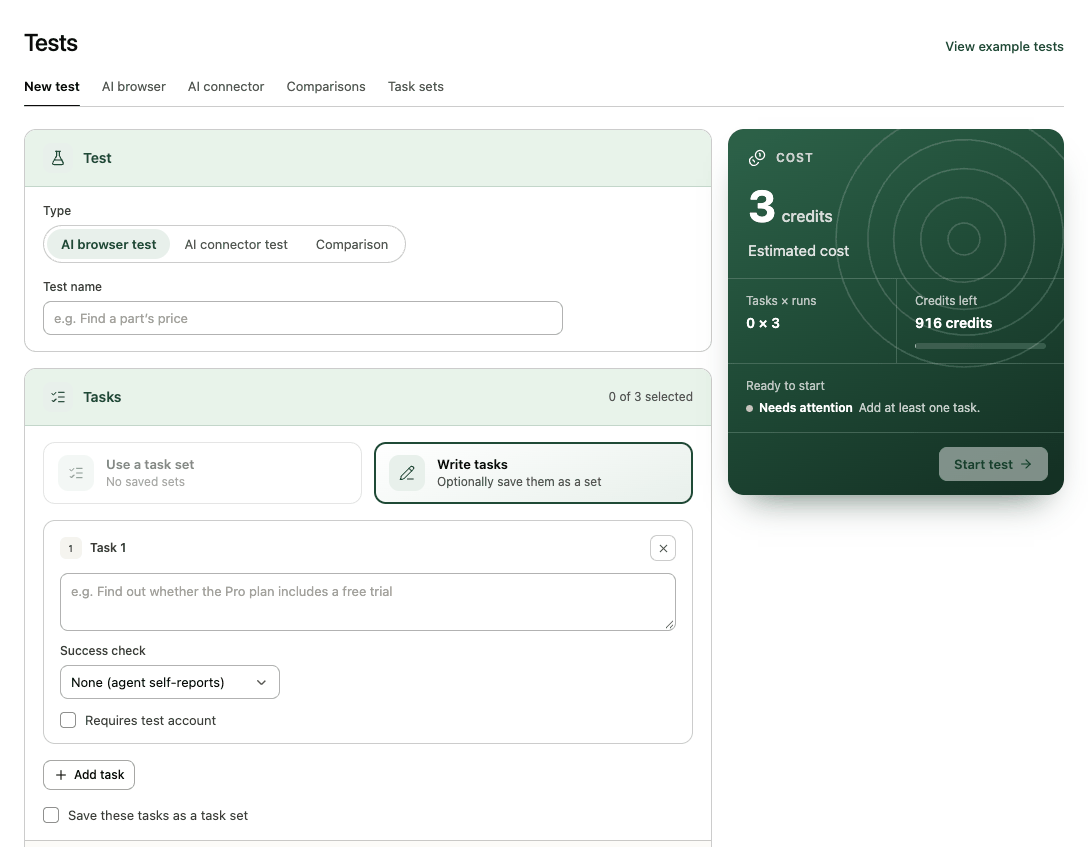
The report opens and fills in as runs finish. Each run is limited to 20 steps and 4 minutes. You can leave the page; the test keeps running and appears under Tests → AI browser. To be emailed when it finishes, tick Finished tests and comparisons in your email preferences.
In guided setup, Find what to build → Test my users' tasks runs suggested tasks the same way, once each.
Read the results
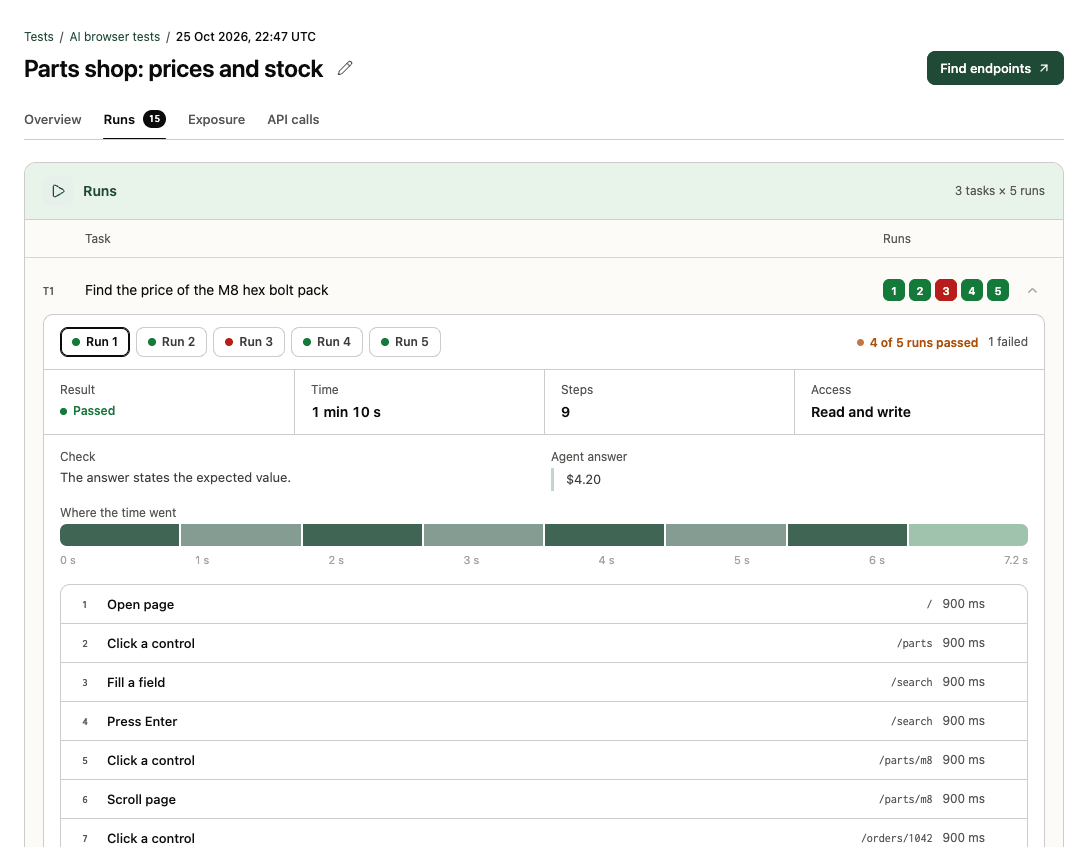
The Overview shows runs passed, median time and steps, a square per run and a row per task. Select a square, or open a task and select Open replay: the Runs tab shows that run's result, the check, the agent's answer, where the time went, and every step with its page, duration, reasoning and screenshot. See Test reports.
Typical failures and what they usually mean:
| What you see | Likely cause |
|---|---|
| Step limit reached, paging through a list | No search or filter the agent can find, or results only load on scroll. |
| Wrong answer, close to right | The value is in a carousel, tab or image, or several similar values sit together. |
| Blocked at sign-in | A redirect loop, a challenge, or a login form the agent can't identify. |
| Passed 2 of 5 runs | An inconsistent journey: a pop-up, an A/B variant or a slow element. |
Tips
- Write tasks the way customers ask, with one clear answer. "Find the price of the Pro plan" beats "Explore pricing".
- Use 3 or 5 runs before drawing conclusions; one run tells you little.
- Signed out, agents only read. With a test account they may change data a task needs; payments, account closures and messages to others are always blocked.
- Check the Exposure tab for controls agents can reach but people can't see.
- From a finished website test, Find endpoints turns the API calls the agent triggered into candidate tools. See Build a connector from tests and explores.