Agent traffic
Which AI agents, assistants and crawlers visit your website, and how that changes once a connector is hosted. Two tabs: Traffic and Data sources.
Where: sidebar → Agent traffic (/dashboard/sites/<site>/traffic). Shown only for verified sites.
Traffic
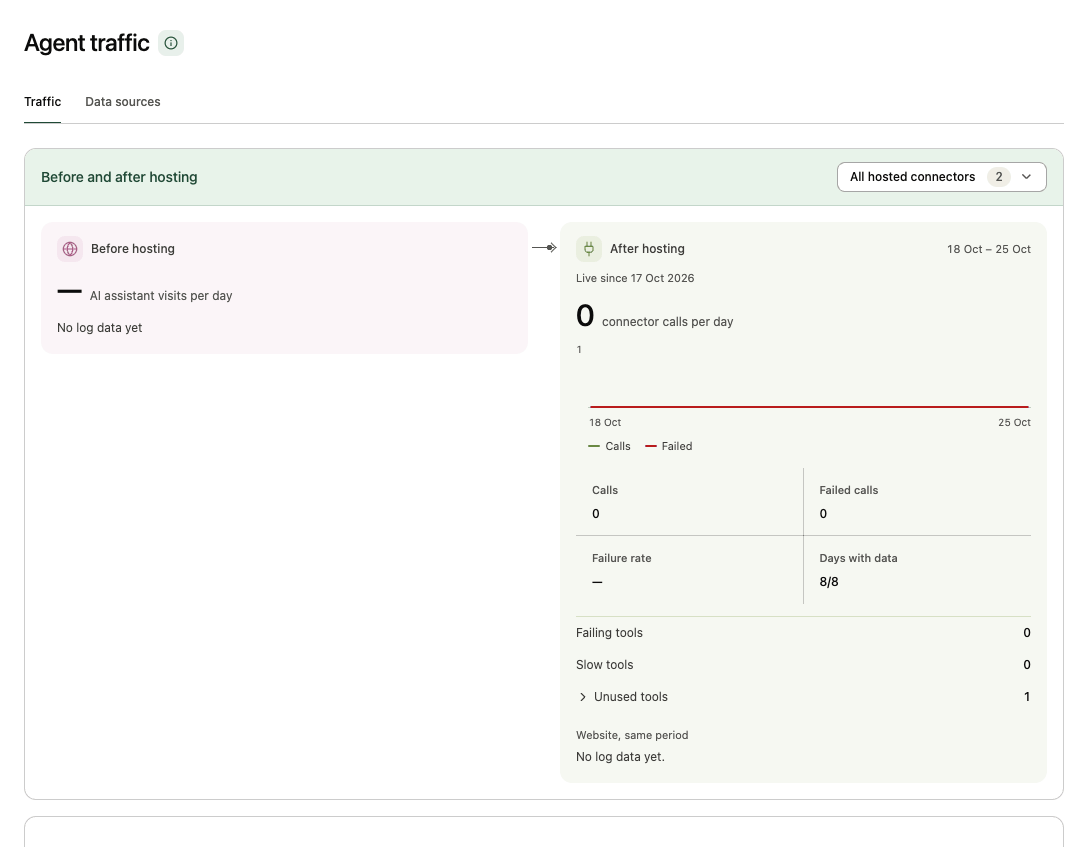
From top to bottom:
- Alerts, when there are any: one line each with a status word and the exact counts (see Alerts).
- Before and after hosting, once a connector has been hosted: AI assistant visits per day to your website before hosting (Visits, Failed requests, Failure rate, Days with data), next to connector calls per day after it went live (Calls, Failed calls, Failure rate, Days with data), with the AI apps calling it and any failing, slow or unused tools. Pick All hosted connectors or one, which uses its own go-live date.
- Overview: Agent requests, Assistant visits, Error rate and Blocked rate, with a table by visitor type (verified and unverified requests, error and blocked rates).
- Agent requests per day and By visitor type: AI assistants, AI search crawlers, AI training crawlers, search engines, other bots and scripts, browsers.
- Agents: each named agent (for example ChatGPT-User, Claude-User, PerplexityBot, GPTBot) with its Type, Requests and Verification (Verified when the vendor's published lists confirm the requests, otherwise Unverified). Open one for visits, errors, blocks and any reads of your AI catalog or MCP server card.
- Who reaches your pages: the top agents and the pages they reach.
- Pages: the pages agents requested most, with requests and errors.
- Sample visits: individual visits, filtered by visitor type. Open one for its duration, errors, blocks and pages in request order.
The info tip beside the title explains what logs can't show, for example what a person asked their assistant, or agents that use a regular browser.
For the path from agent visits to tool calls (Agent visits → Catalog reads → Sessions → Tool calls), see the site overview and the connector's usage.
Data sources
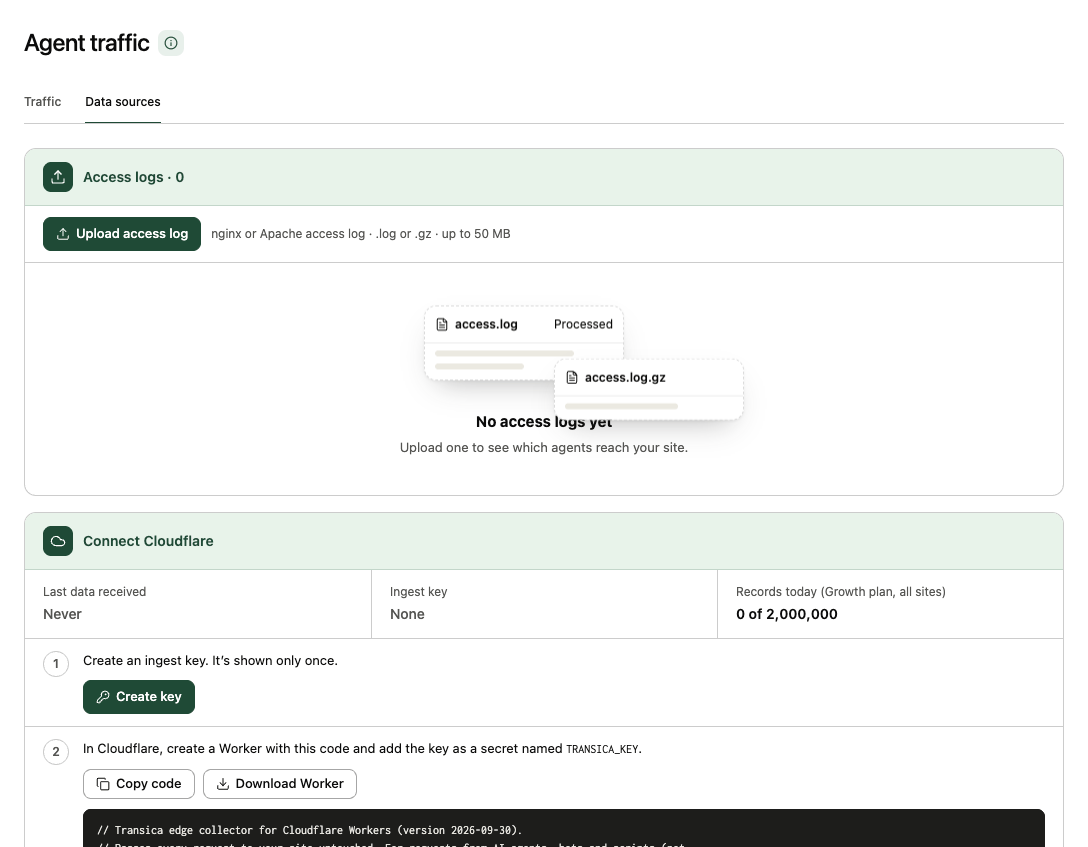
Agent traffic needs your web server's records. Two ways in:
- Upload access log: an nginx or Apache access log,
.logor.gz, up to 50 MB. Access logs lists each upload with its Date range, Lines counted and Status; open one for its requests, visits and the date its data is deleted, or delete it. - Connect Cloudflare: an admin selects Create key to make an ingest key (shown only once), then copies the code (Copy code) or selects Download Worker, creates a Cloudflare Worker with it, and adds the key as a secret named
TRANSICA_KEY. The Worker forwards every request to your site unchanged. After responding, it sends the time, path, status, user agent and IP address of requests from AI agents, crawlers and scripts. It never sends people's browsing, cookies, credentials or page content. Replace key and Revoke key stop the old key working.
The Cloudflare card shows Last data received, the Ingest key (its last characters and when it was last used), Records today against your plan's daily allowance (shared by all sites) and Records received by day. Records over the daily limit are dropped; the limit resets at midnight UTC. Each request through the Worker also counts toward your Cloudflare Workers quota.
Alerts
Transica checks for:
- New agent: a named agent visiting for the first time.
- Blocks increased: more AI assistants or crawlers blocked this week than last.
- Traffic spike or Traffic drop: a day's AI-agent requests against the previous days' average (with Cloudflare connected). No traffic data means nothing arrived from the Worker that day.
- Errors increased: a higher share of AI-agent requests answered with errors.
Alerts are checked after each log upload and once a day for sites sending Cloudflare records. They show on this page; admins are emailed only if they tick Agent traffic and connector alerts in email preferences.