Get listed
One seven-step flow per platform that takes a connector from "published" to "submitted": the connector, its listing address, the listing, the reviewer account, the test prompts, the submission and the review status.
Where: AI app listings → a connector → the button on the ChatGPT or Claude card (/directories/<connector>/get-listed/chatgpt or /claude). Switch platform with the ChatGPT / Claude switch at the top. Each step is reachable directly with ?step=.
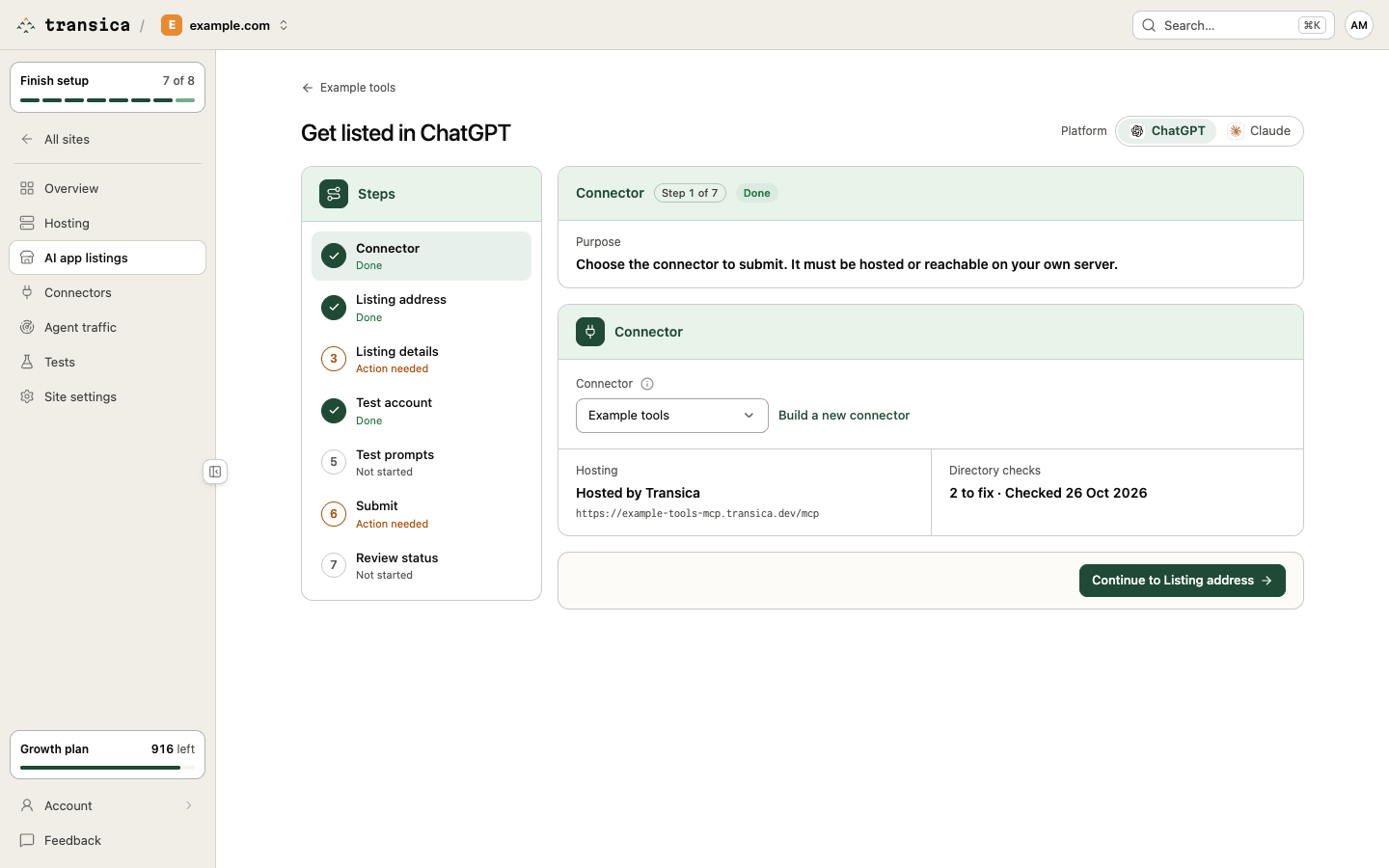
Each step's state comes from your data: Not started, In progress, Pending, Action needed or Done. The flow opens at the first step that isn't done, and you can move freely between steps. The listing, logo and test account are shared, so finishing one platform fills most of the other.
1. Connector
Choose the connector to submit. It must be hosted by Transica or reachable on your own server. The step shows Hosting (Hosted by Transica with its address, Your server, or Off with Turn on hosting) and the Directory checks summary (for example "1 to fix · Checked 25 Oct 2026"). Build a new connector goes to Connectors.
2. Listing address
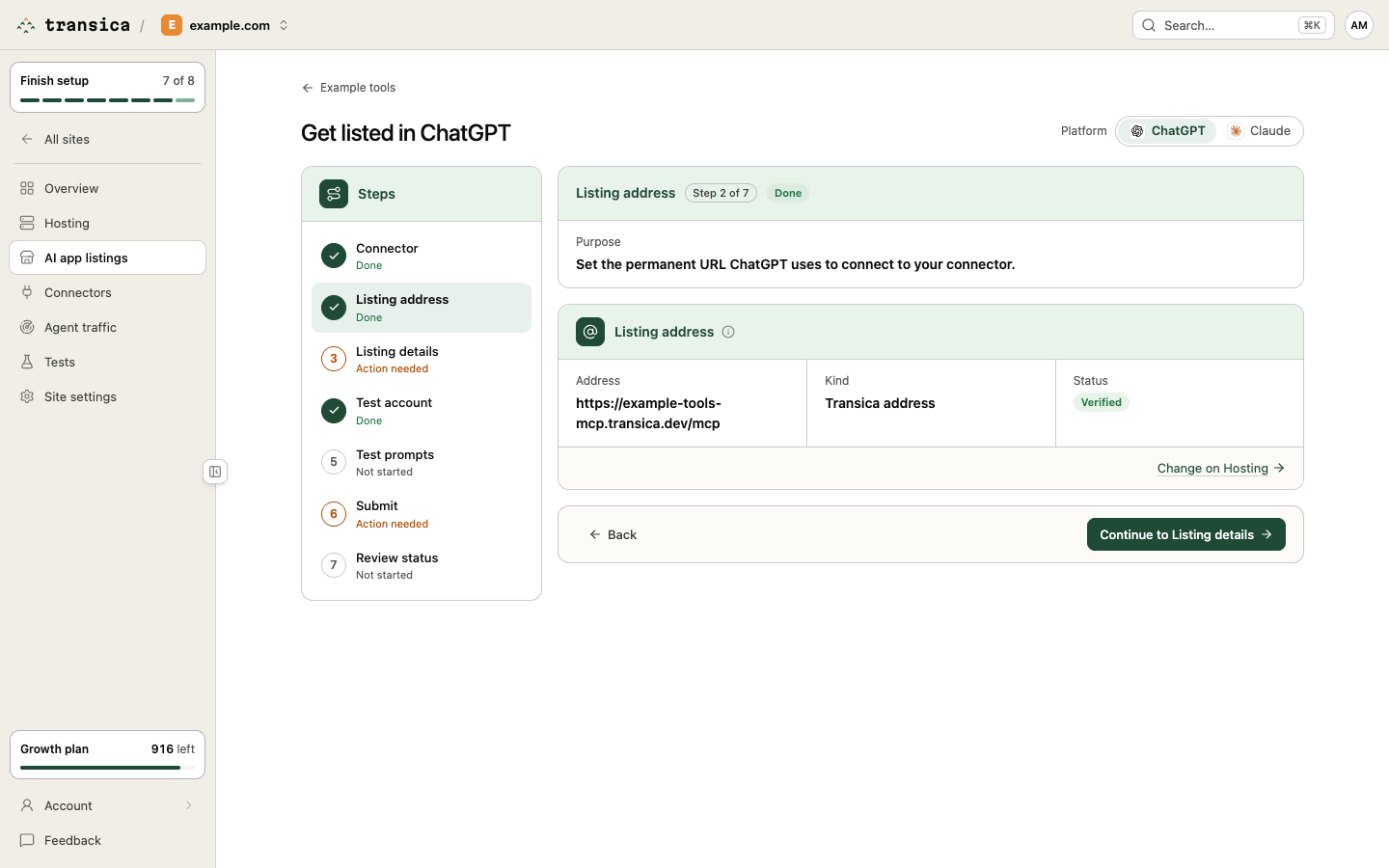
The permanent URL the platform uses to connect, shown as Address, Kind and Status. It's the connector's hosting address: the Transica address (https://<name>-mcp.transica.dev/mcp), or Your domain once you've set one up with the Own domain switch on Hosting (Business and up). Change on Hosting opens that setup. A connector for your own MCP server lists at its own address. The address locks once you record a submission, because the platform stores it.
3. Listing details
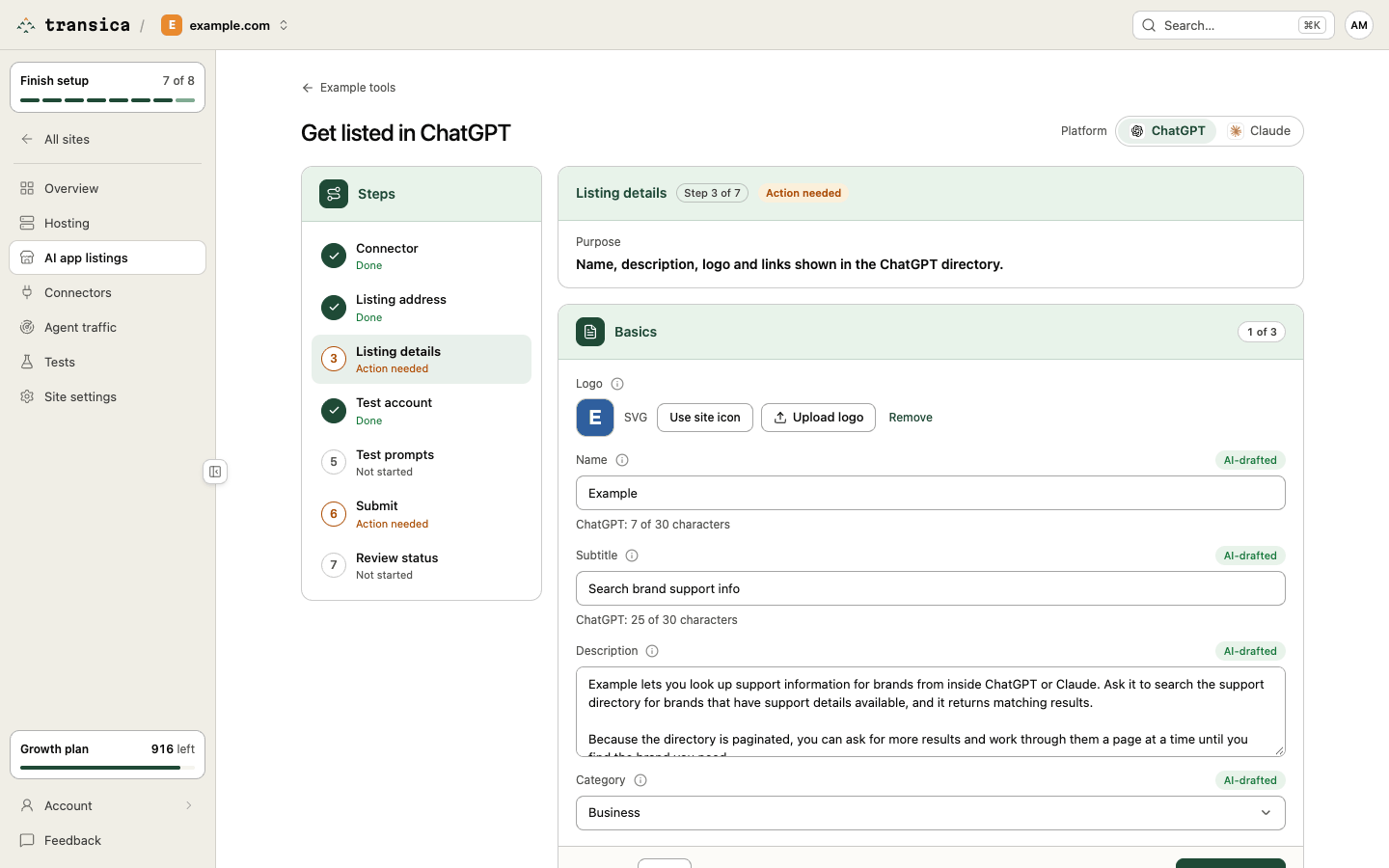
Only the fields the platform shows, in parts with Back, Save and Next:
| ChatGPT | Claude |
|---|---|
| Basics: logo, name (≤30 characters, no "MCP" or "Plugin"), subtitle (≤30), description (≤4,000, no superlatives), category (exactly one) | Basics: logo, name (≤100), one-liner (≤200), description (≤2,000), one to five categories |
| Links: website, privacy policy, terms of service, support (each must load) | Links: privacy policy, support, documentation |
| Review details: developer name (must match your verified OpenAI identity), release notes; countries and keywords are optional |
A draft is filled in from your site as soon as the flow opens (From your site or AI-drafted marks those fields); edit anything. Use site icon or Upload logo sets the logo. Every field has an (i) tip with the platform's rule and a link to its source. Notes on this draft lists what to double-check, for example price words, which ChatGPT doesn't allow in a listing.
4. Test account
Choose the test account the platform's reviewers use to sign in, then Save test account (admins can Add a test account here). Reviewer sign-in shows whether the latest directory test signed in with it. If no tool needs sign-in, this step says No sign-in required.
5. Test prompts
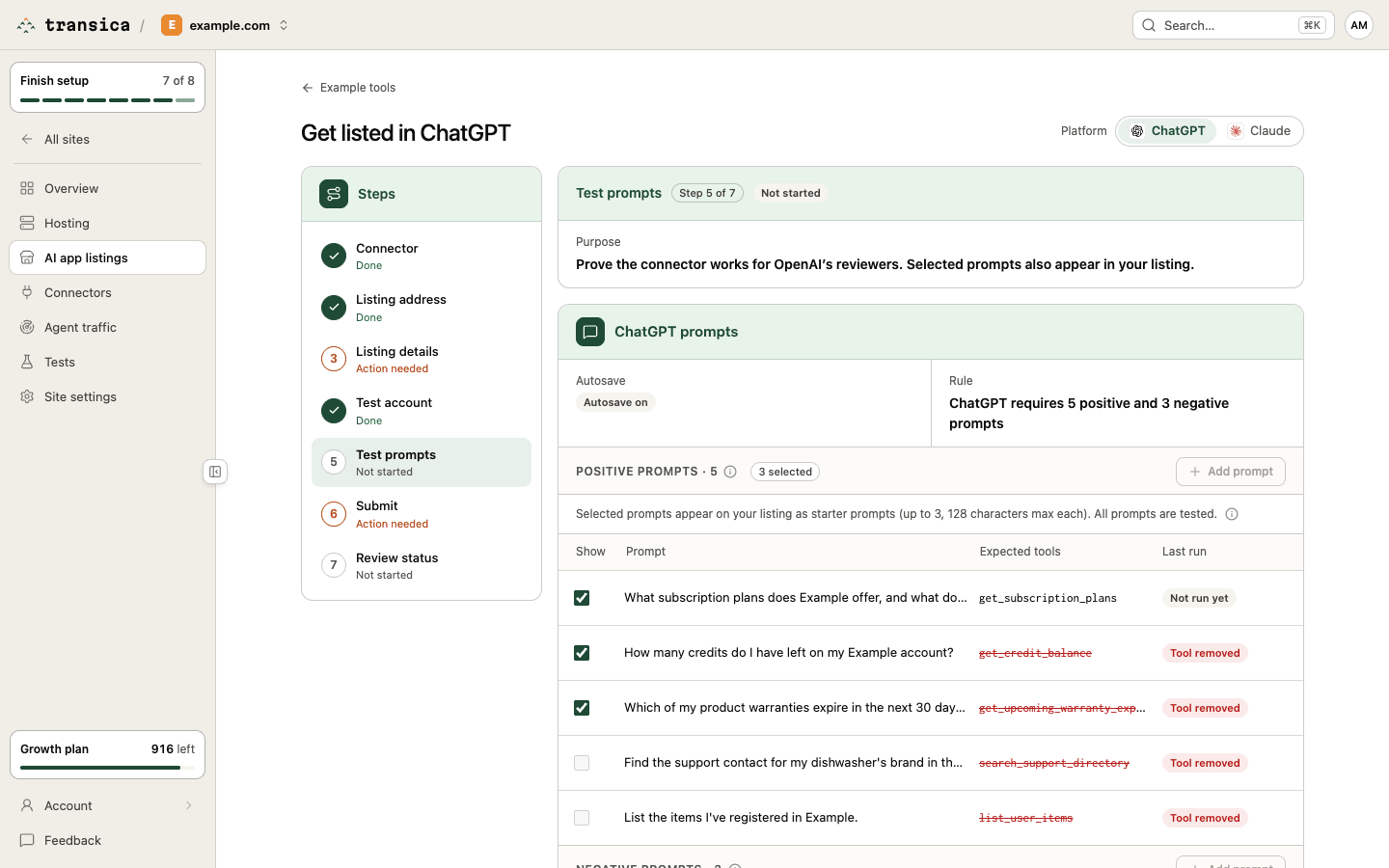
Prove the connector is picked for the right questions and ignored for the wrong ones.
- Positive prompts should call your tools. For each, set the Expected tools (chips, with search over the served tools; none means any tool counts).
- Negative prompts should call no tool.
- ChatGPT requires exactly 5 positive and 3 negative. Claude takes 3 or more positive and up to 3 negative; it passes when at least 3 positive prompts pass, every tool has been called and the negatives pass.
- Tick Show on positive prompts to use them in your listing (ChatGPT: up to 3, 128 characters each; Claude: its example prompts). Each platform keeps its own list.
Prompts are suggested to start you off and saved as you type (Autosave on). Run tests runs them on the platform's own model family (for ChatGPT, an OpenAI model) and shows Last run per prompt; a prompt changed since its run is marked Edited. The Run tests card says how many test prompts a run uses and how many are left this month on your plan. See previous tests opens earlier runs. Passing here doesn't guarantee how the platform's own assistant behaves.
6. Submit
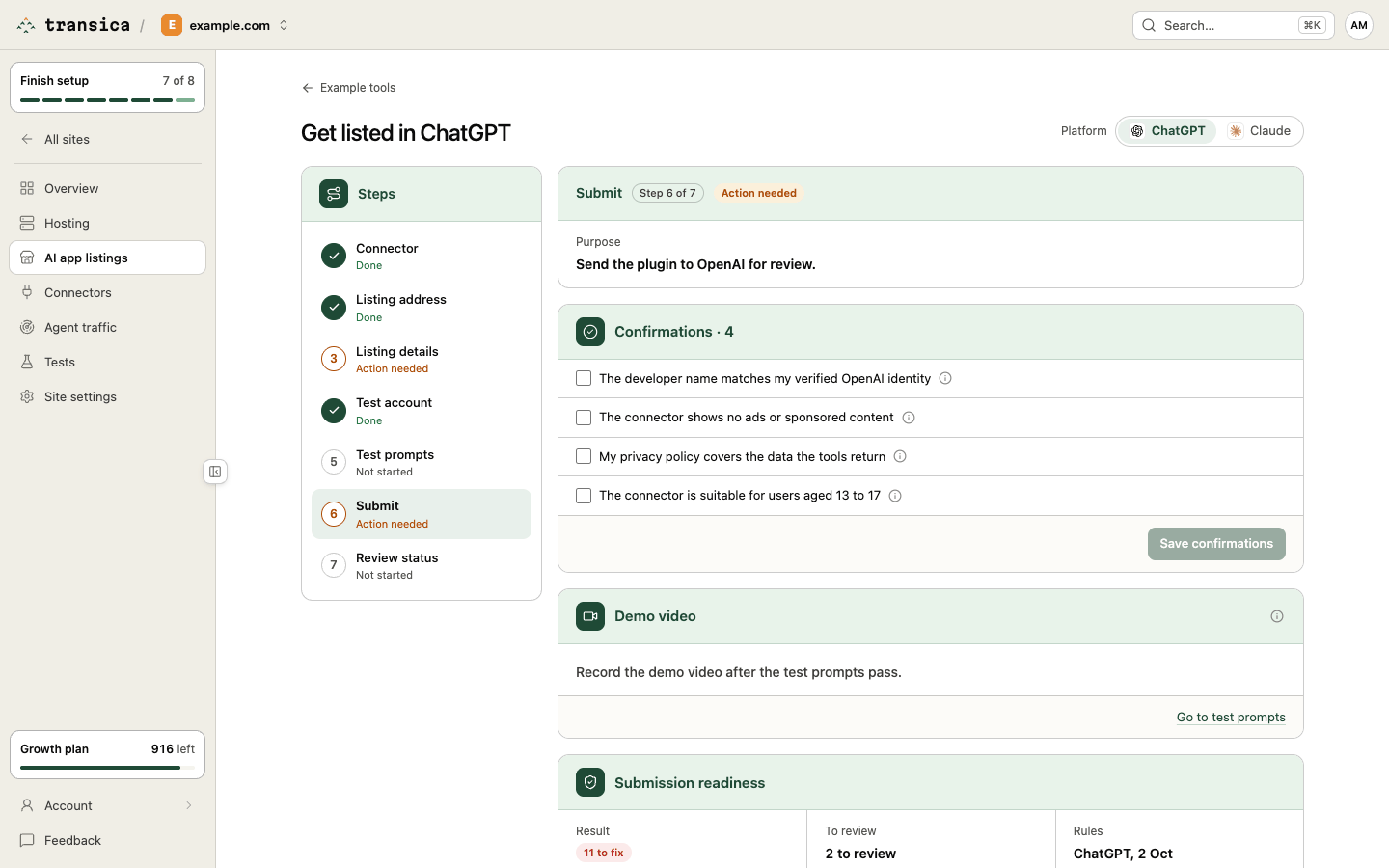
Everything the review needs, in order:
- Confirmations: statements only you can make, then Save confirmations. ChatGPT: the developer name matches your verified identity, no ads, your privacy policy covers the data the tools return, suitability for users aged 13 to 17, and (when tools need sign-in) reviewers can sign in without MFA. Claude: no ads, privacy policy coverage, every tool calls only APIs you own or legitimately proxy, and whether the connector handles personal health data. Claude also asks you to confirm flagged tools don't move money or generate media, when the checks find such tools.
- Demo video (ChatGPT): once the test prompts pass, Before you record explains how to add the connector to ChatGPT as a custom MCP server, and Record these prompts lists the passing cases with tips. Paste the video's link. If the prompts change, you're asked to record again.
- Ready to submit: the result, what's left To fix with a link to each, and the rules date; then All checks, collapsed.
- The platform's items, as numbered steps that open where you need to act:
- ChatGPT: Download the plugin ZIP (it waits for the checks, confirmations, video, release notes and logo), Upload it to OpenAI (a link to platform.openai.com/plugins), Verify the domain (paste the token OpenAI shows, Save token, then Verify; Transica serves it at
/.well-known/openai-apps-challenge), and Reviewer sign-in (login URL, username and sign-in steps to copy into OpenAI's form). - Claude: the portal's nine steps (Connection, Tools, Listing, Use cases, Company, Authentication, Data handling, Test & launch, Compliance), each field ready to copy, the logo to download, and Open claude.ai/directory/manage. In the portal, choose MCP connector.
- ChatGPT: Download the plugin ZIP (it waits for the checks, confirmations, video, release notes and logo), Upload it to OpenAI (a link to platform.openai.com/plugins), Verify the domain (paste the token OpenAI shows, Save token, then Verify; Transica serves it at
- Mark as submitted to ChatGPT (or Claude): records the submission and locks the listing address.
7. Review status
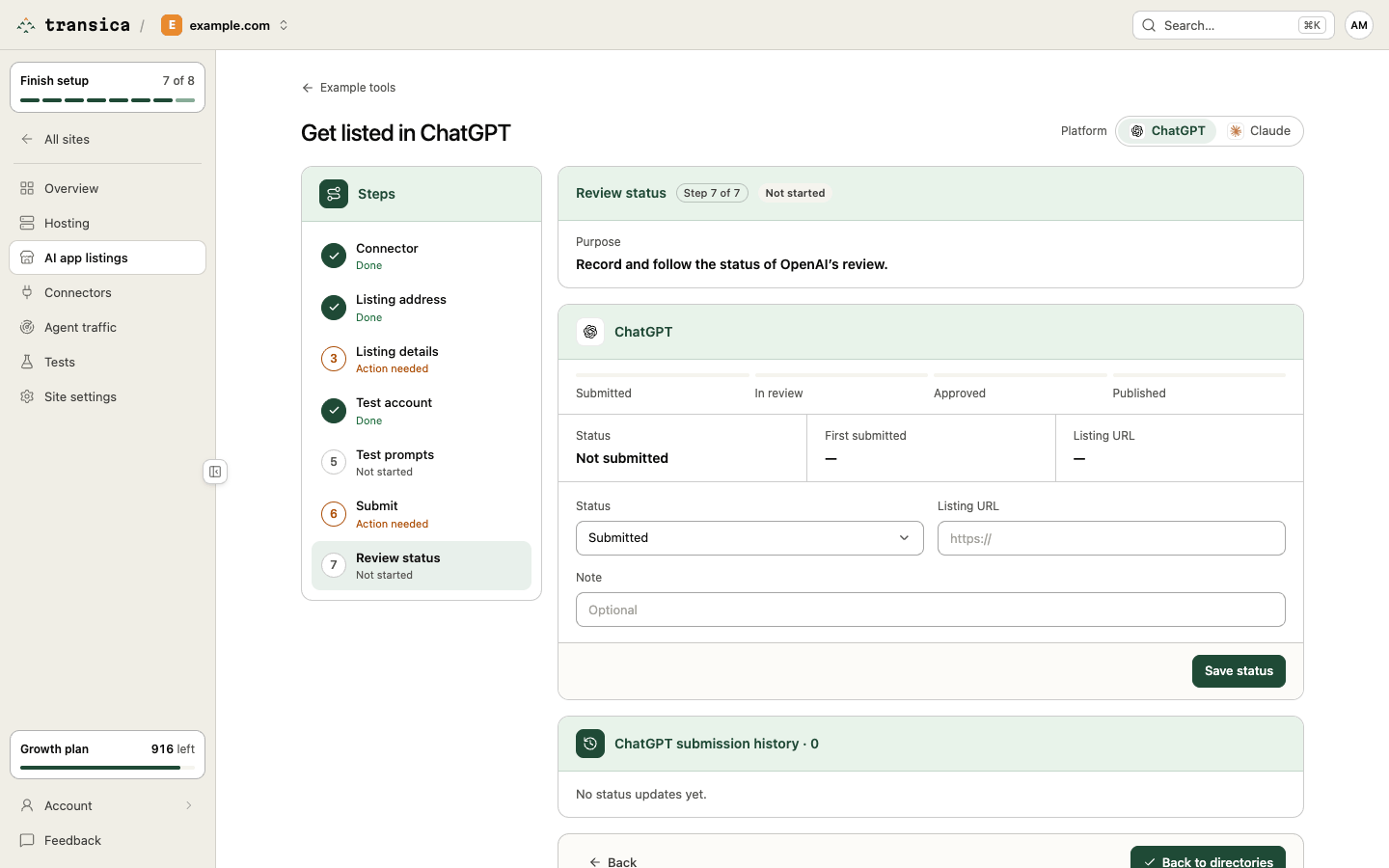
Record the platform's review status (Submitted, In review, Changes requested, Approved, Published, Rejected or Withdrawn), a note and the listing URL once live. Checks that changed after you submitted are listed here. The submission history keeps every change.