Guided setup
Eight steps that take a site from "just added" to a hosted connector you've compared with your website. Each step is a panel you complete in place; the list on the left shows what's done, what's next and what's locked.
Where: Add site on Sites, the Finish setup card in the sidebar, the Next step card on the site overview, or /dashboard/sites/<site>/setup?step=<step>.
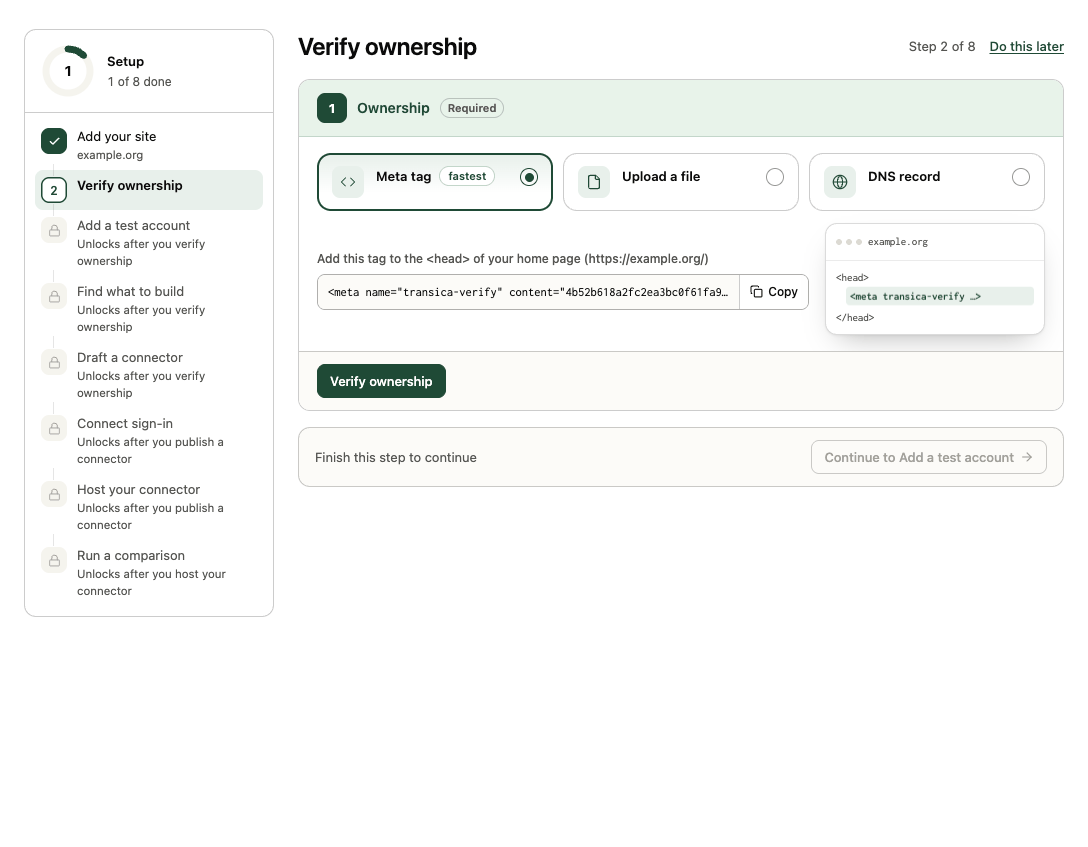
The steps
| # | Step | step= |
Done when | Unlocks after |
|---|---|---|---|---|
| 1 | Add your site | site |
The site exists. | — |
| 2 | Verify ownership | verify |
A meta tag, file or DNS record is found. | Step 1 |
| 3 | Add a test account (optional) | account |
A test account is saved. | Verification |
| 4 | Find what to build | build |
An explore is ready, an AI browser test has finished, or a connector keeps your API spec. | Verification |
| 5 | Draft a connector | connector |
A connector version is published. | Step 4, or a saved draft |
| 6 | Connect sign-in | signin |
AI apps can sign in through your provider, or the connector is hosted. | A published connector |
| 7 | Host your connector | host |
Hosting is on and serving a version. | A published connector |
| 8 | Run a comparison | compare |
A comparison has finished against the hosted connector. | Hosting on |
Progress comes from real state, not from clicking through: if you publish a connector from the Connectors page, step 5 shows as done here too. Each step ends with Continue to the next one. Steps 3 to 8 have Skip for now; a skipped step stays open in the list. Adding and verifying the site can't be skipped, but Do this later (top right) takes you to the site overview and you can come back.
Step 4: Find what to build
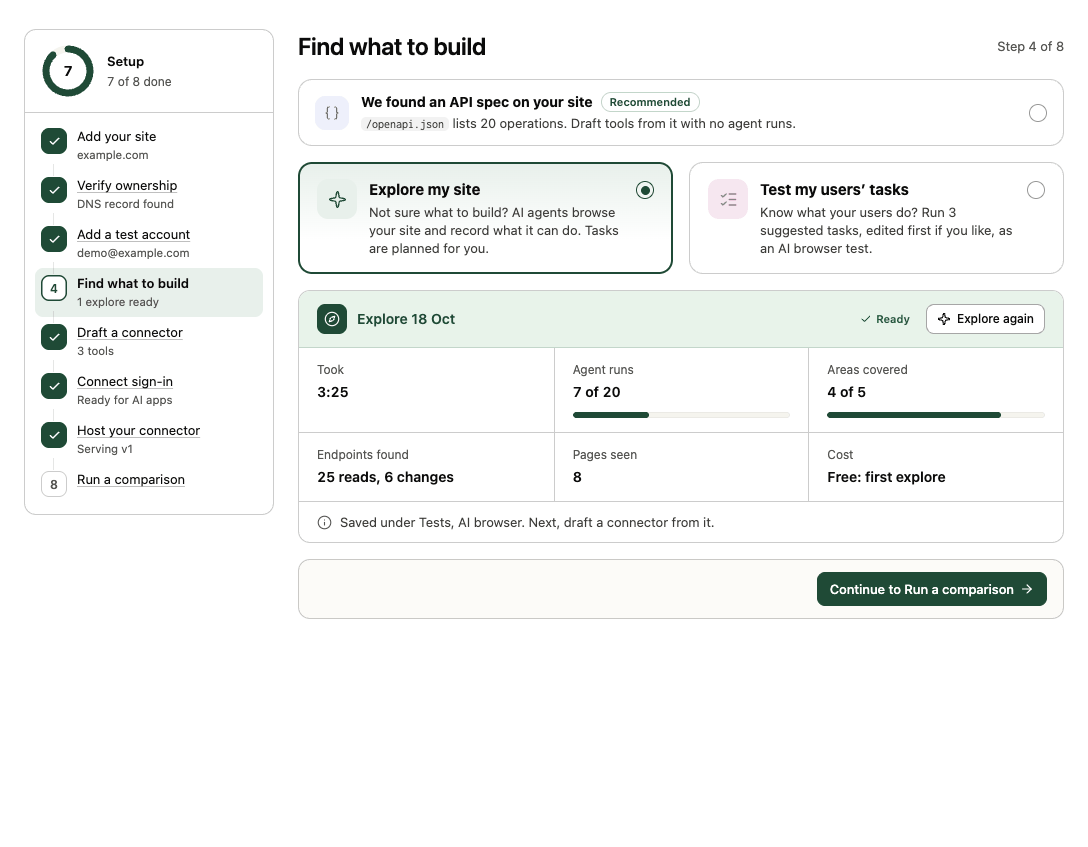
Pick one way in. Each runs without leaving setup:
- Explore my site: AI agents browse your site area by area and record what it can do. Tasks are planned from your site map; follow-up runs go to gaps. The panel shows the planned tasks, the most follow-up runs and Most it can cost before you start. A site's first explore is free; after that each agent run costs 0.3 credits. The explore is named for you ("First explore", "Explore 2"…). See Explore your site.
- Test my users' tasks: up to three suggested tasks, ready to edit, run once each as an AI browser test with Run AI browser test. The tasks are also saved as the task set "Your users' tasks", ready for step 8.
- Use my API spec: draft tools straight from an OpenAPI 3.0 or 3.1 JSON spec, with no agent runs. If we find a spec on your site, it sits above the other two as We found an API spec on your site and is recommended; otherwise Have an API spec? sits below them. Use the one found, upload a file (up to 1 MiB), enter its address or paste it, then Continue to Draft a connector. The connector keeps a copy. See Build a connector from an API spec.
While an explore or test runs, the panel shows its progress (time, agent runs, endpoints found, pages seen). When it's ready, it says where the run is saved, under Tests.
Step 5: Draft a connector
Setup embeds the build inline:
- Under Build from, tick the finished explores and AI browser tests to use. A kept API spec is always included.
- Check the Connector name (filled in from your site).
- Tick the endpoints that become tools, then select Design tools. Each ticked endpoint becomes one tool; AI designs left this month shows your plan's allowance.
- Review the draft: Tools, Reads, changes and Warnings. A tool marked Needs review must be reviewed (or left out) before you can publish.
- Select Publish v1. Back to the endpoints returns to step 3.
It's the same flow as Design, review and publish.
Step 6: Connect sign-in
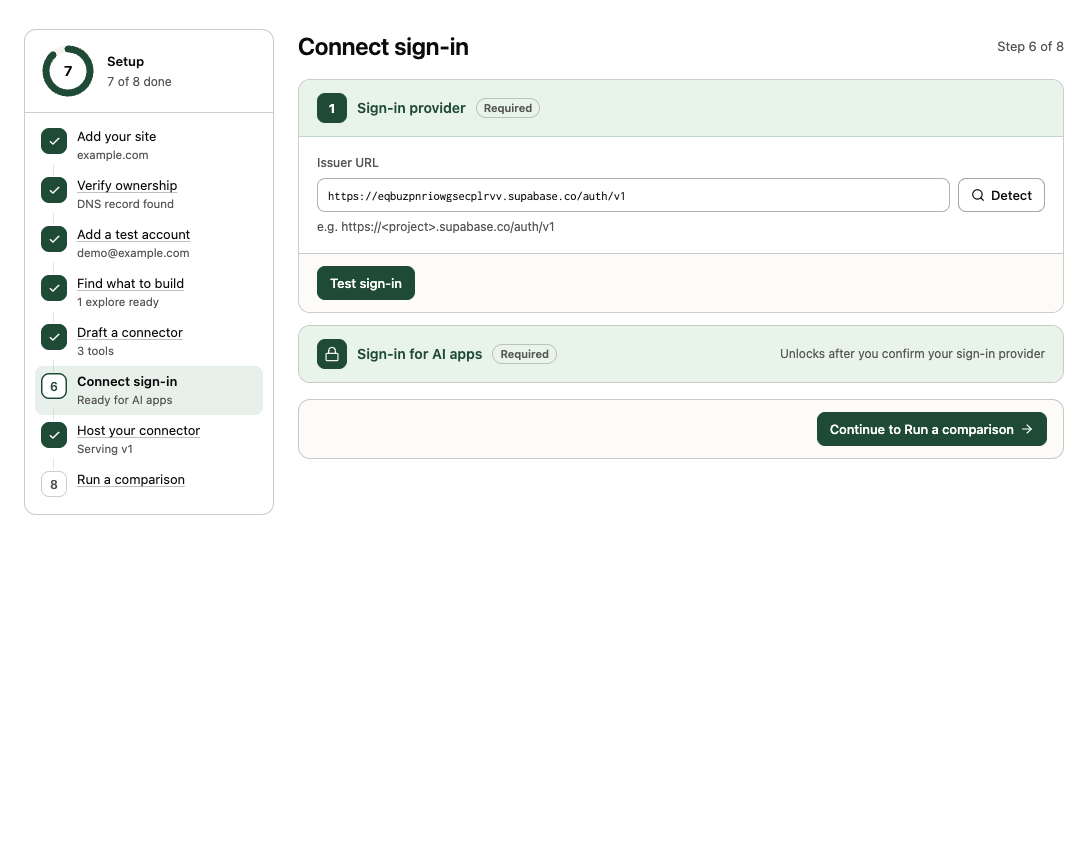
In Sign-in provider, enter your provider's issuer URL (for example https://<project>.supabase.co/auth/v1) and select Detect, then Test sign-in. The second panel, Sign-in for AI apps, unlocks once the provider is confirmed. Once it's done, Reset sign-in clears it so you can start again; it's refused while a connector is hosted ("Turn off hosting first"). See Connect your sign-in provider.
Step 7: Host your connector
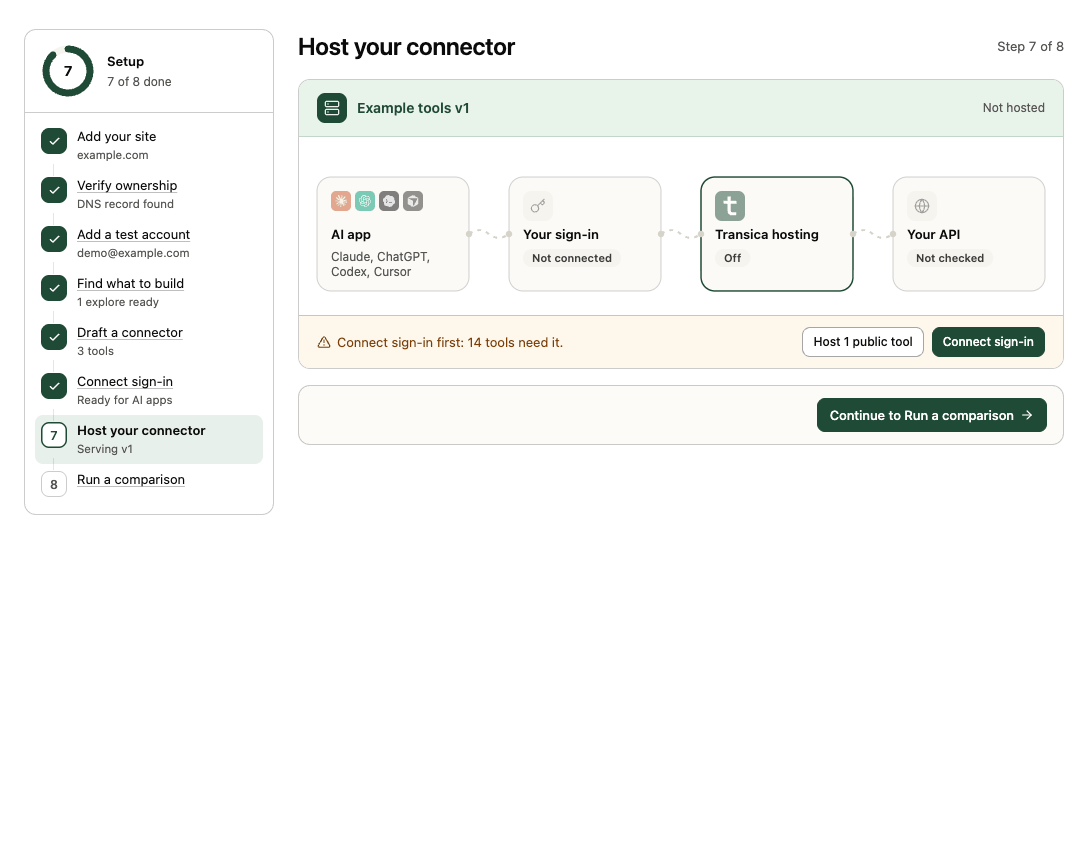
The panel shows how a request will reach your site, the Tools it will serve (reads and changes), Sign-in and the Address. Host turns hosting on in place for every tool you published, with changes approved and each tool's suggested sign-in. Then it shows Live, the address to copy, Tools served and Sign-in.
- Sign-in skipped while tools need it: "Connect sign-in first" with Connect sign-in, or Host N public tools to serve only the tools that need no sign-in (never ones that change data).
- Free plan: hosting isn't included; See plans opens Billing.
- Address taken or invalid: edit the address and try again.
- Only admins can turn hosting on.
For the full controls (tool access, sign-in, AI apps, health), see Hosting and Host your connector.
Step 8: Run a comparison
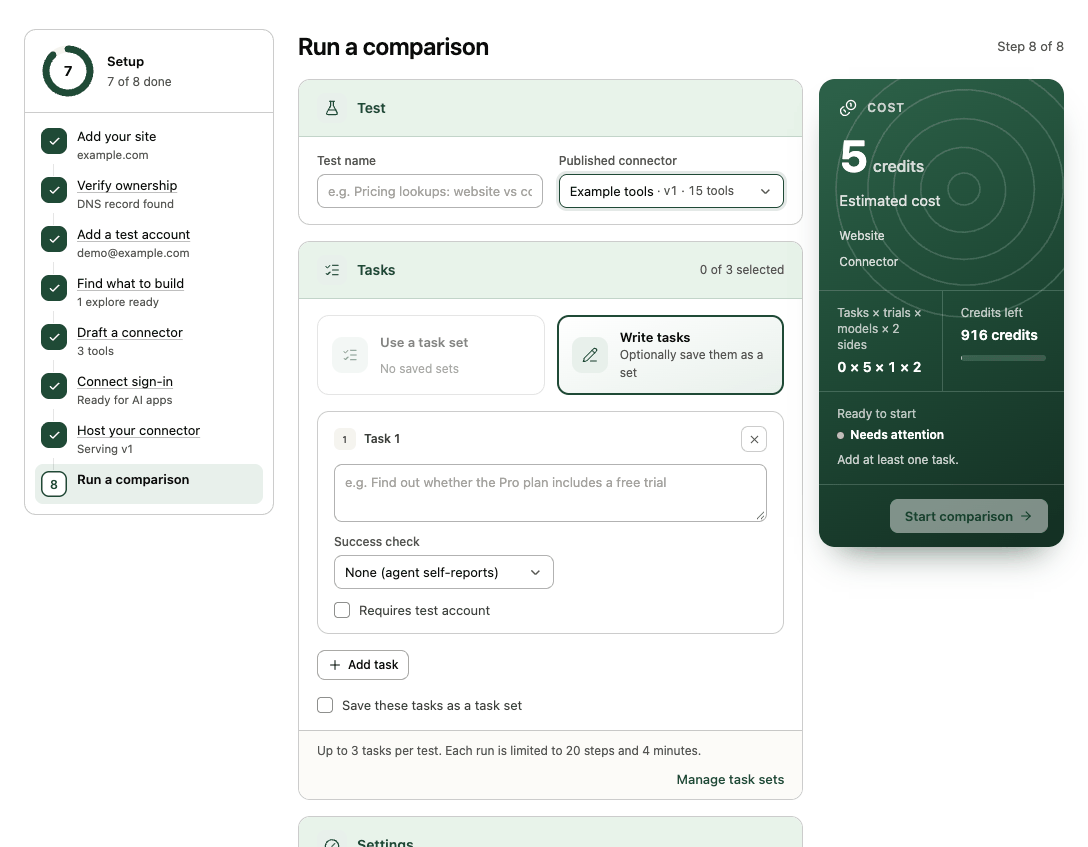
The comparison form, pre-set to the hosted connector. Start comparison runs it; while it runs, View progress opens it. See Compare your website and connector.