Test reports
Every AI browser test, AI connector test and explore has a report: the results, every run replayed step by step, and (for website tests) hidden controls and the API calls the site made.
Where: select a row on Tests → AI browser or AI connector (/dashboard/sites/<site>/tests/<test>).
The tabs are Overview, Runs, and for finished website tests Exposure and API calls. The pencil next to the title renames the test.
Overview tab
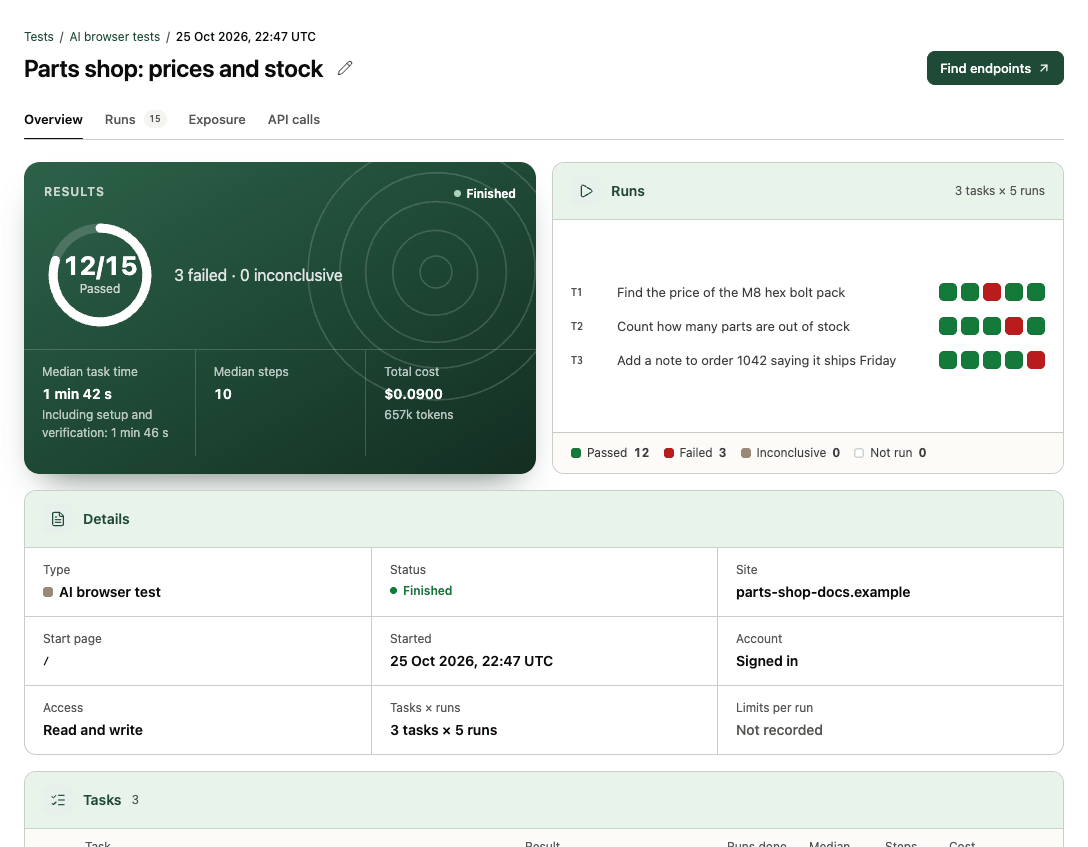
- Results: runs passed out of runs planned (for example 12/15), with failed, inconclusive and not-run counts; Median task time (and the time including setup and verification); Median steps (or Median tool calls for connector tests); Total cost, the AI cost of the runs, with the tokens used.
- Runs: a square per run for each task, coloured by result. Select a square to open that run's replay.
- Details: Type, Status (Running, Finished or Stopped early), Site, Start page (or the Connector and version), Started, Account (signed out, or which test account), Access (Read-only or Read and write), Tasks × runs and Limits per run. Connector tests of a hosted connector add the Endpoint and Hosting mode.
- Tasks: one row per task with its Result (Passed all runs, Mixed results, Failed…), Runs done, Median time, Steps (or Tool calls) and Cost. Open a task to see its success check and select Open replay to jump to its runs.
Runs tab
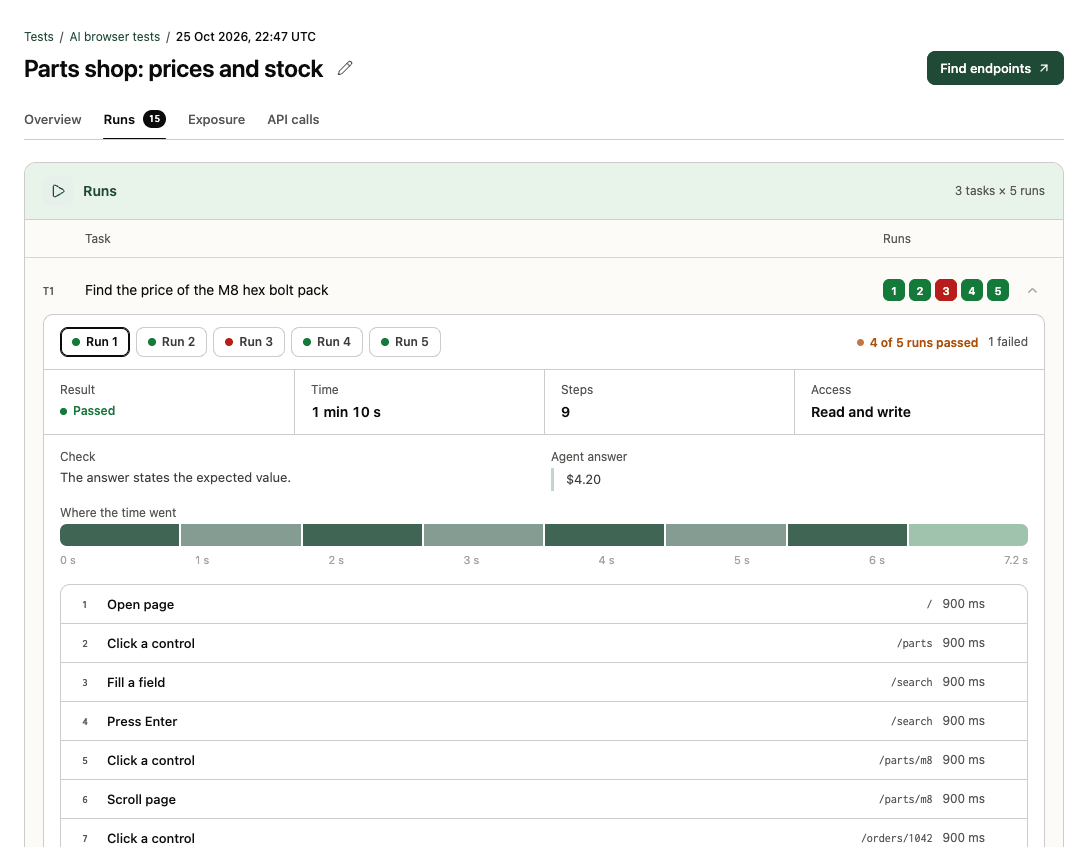
One row per task with a numbered chip per run (green passed, red failed). Open a task, pick a run, and the replay shows:
- Result, Time, Steps (for example 8 of 20) and Access for that run.
- Check: why the run passed or failed, and whether an AI reviewer verified an answer worded differently from the expected value.
- Agent answer: what the agent said.
- Where the time went: a strip of every step's duration.
- Numbered steps: each action (Open page, Click a control, Fill a field, Choose an option, Press a key, Scroll page, Go back, Read page, Answer) with its page and duration. Steps expand to show the agent's reasoning and the screenshot.
Links to a run are shareable within your organization: ?tab=runs&task=0&run=2 (task and run numbers start at 0).
Exposure tab (website tests)
Controls the agent could reach that are hidden from people, for example a closed chat panel or an off-screen menu. A bar counts them by assessment, then one row per group of controls with the pages they're on:
| Assessment | Means |
|---|---|
| Needs attention | Hidden controls sent requests during the test. Check that this access is intended. |
| Spam trap | Fields that may block spam bots, but can also block legitimate agents. |
| To confirm | Hidden from people but available to agents. |
| Helps agents | Hidden links and shortcuts that help agents navigate. |
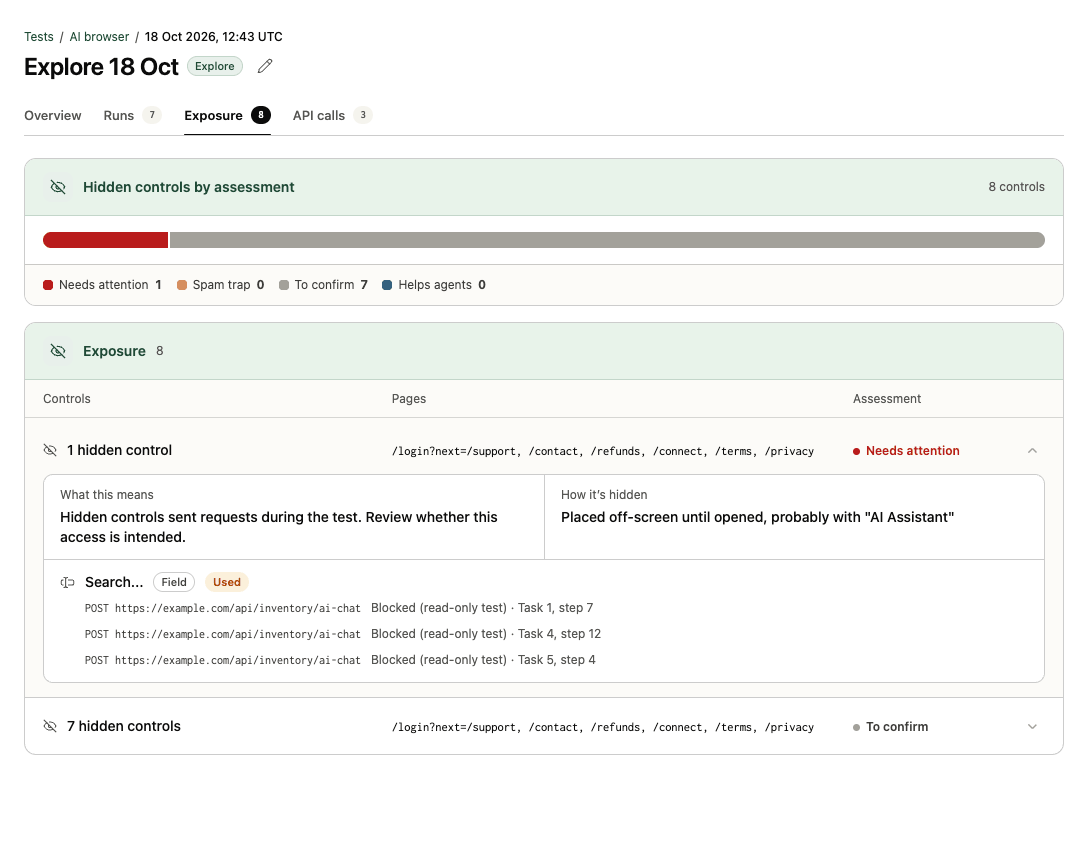
Open a row for how each control is hidden and any requests it sent. Exposure is shown so you can decide what's intended; it's never scored.
API calls tab (website tests)
What the site's pages fetched while the agent worked: totals for Requests, Endpoints, API calls and Blocked, then one row per endpoint with how often it was Seen and its Status codes. Open a row for the full address. This is what Find endpoints builds on.
Actions on a report
| Action | Where | What it does |
|---|---|---|
| Find endpoints | Finished website tests, top right | Opens New connector with this test ticked under Previous runs, so its observed API calls become candidate tools. |
| Compare with website | Connector tests, top right | Starts a comparison with the same connector. |
| Open comparison | Tests that are one side of a comparison | Opens the comparison report. |
| Delete report | Bottom of the Overview (admins, once finished) | Permanently deletes the test's runs, steps, screenshots and captured calls. If connectors were built from it, they're listed first; their saved versions keep their tools. Charges remain in Billing. |
Connector test reports
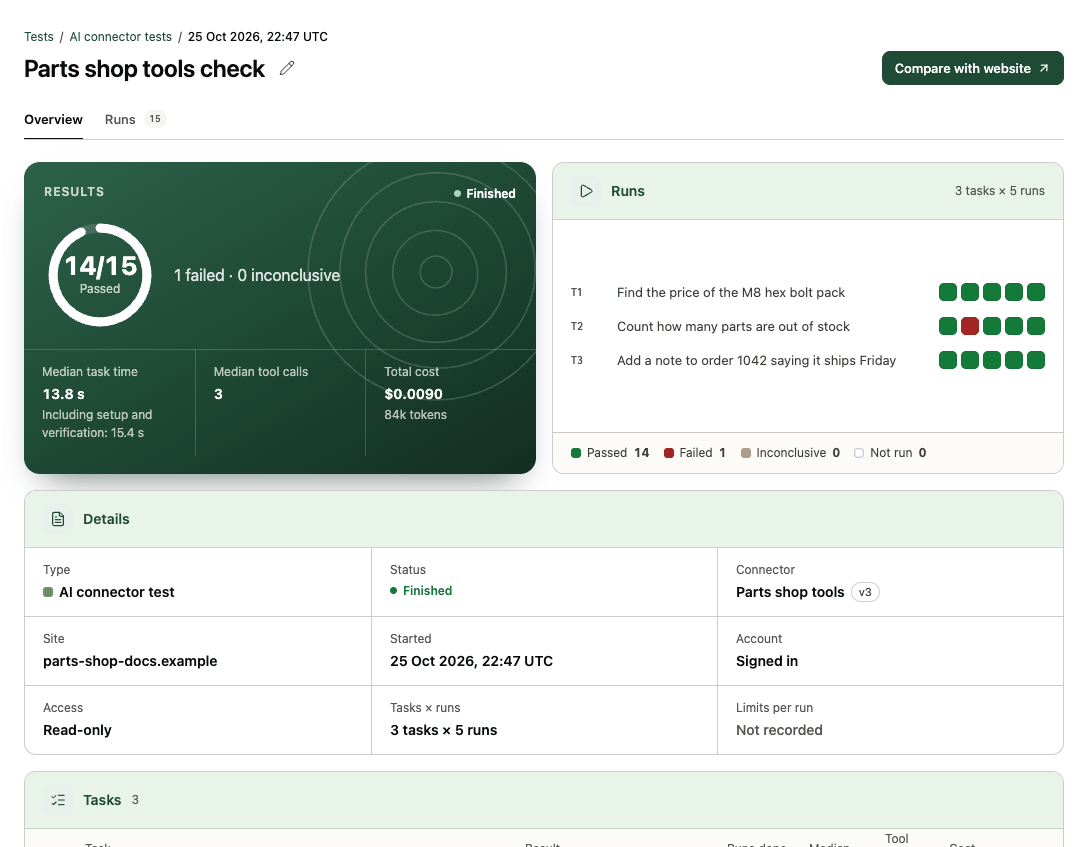
The same layout without a browser: the replay shows each tool call with its input and output, instead of page steps.
Explore reports
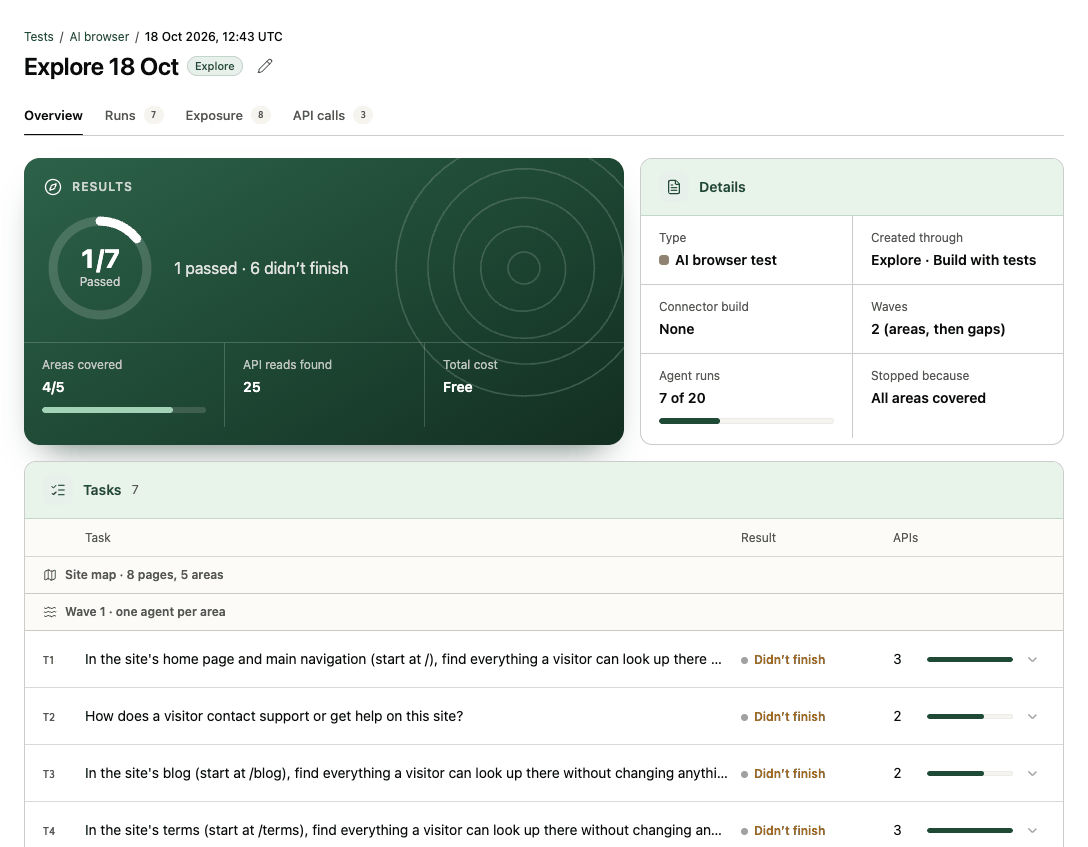
An explore is listed as one AI browser test, tagged Explore, with one report for all its agents. While it runs, a Progress panel shows the status (for example Exploring · wave 2), Tasks done, API reads found so far and Running for. Once done, Results shows tasks passed, Areas covered, API reads found and Total cost, and Details adds Waves, Agent runs (for example 14 of 20) and Stopped because (All areas covered, Nothing new found, Run cap reached or Time limit reached). Tasks are grouped under the site map and each wave, with the API calls each found. Open build takes you to the connector it feeds. See Explore your site.
Directory test reports
The test prompts you run for a ChatGPT or Claude listing have reports too, reached from the listing's Test prompts step rather than from Tests.
What each run result means
See Test results and checks for each result.