Skills
A skill is a short how-to that tells an AI app how to combine your connector's tools for one task. A connector that Transica hosts serves its skills to AI apps along with its tools.
Where: a connector page, Skills tab. A skill opens in the editor at /dashboard/apps/<app>/connectors/<connector>/skills/<skill>, and New skill opens …/skills/new. Connectors made from your own MCP server have no Skills tab.
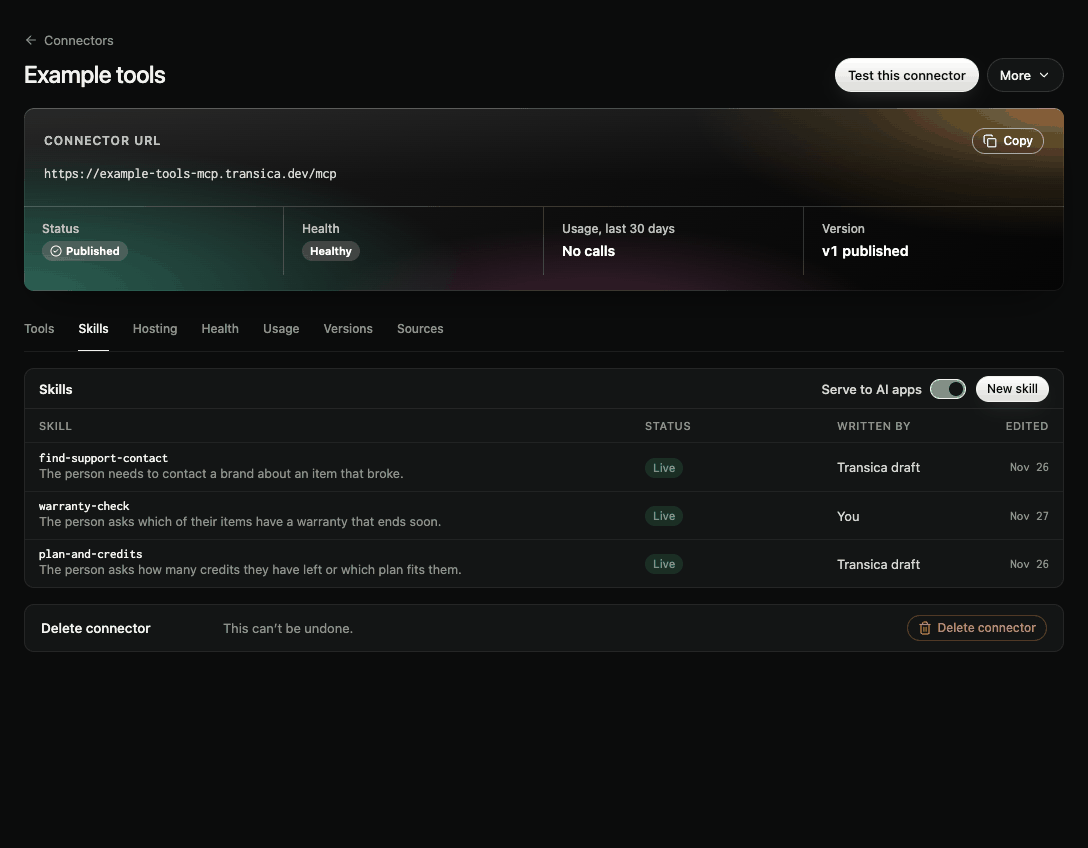
The list
| Column | What it shows |
|---|---|
| Skill | The skill's name, with the line that says when to use it. |
| Status | What AI apps get now (see below). |
| Written by | Transica draft, or You once someone on your team saves a change. |
| Edited | The day of the last save. |
- Serve to AI apps: one switch for the whole connector. Off keeps the skills but serves none of them.
- New skill opens an empty editor. A connector can have up to 20 skills.
Status
| Status | Meaning |
|---|---|
| Live | AI apps get this skill. |
| Not hosted | The connector isn't hosted yet, so no AI app gets the skill. |
| Names a removed tool | The steps name a tool that the published version no longer has. Edit the steps. |
| Off | The skill's own switch, or Serve to AI apps, is off. |
Hosting's health checks include Saved skills are served. If the hosted connector serves a different copy, Transica sends the saved skills again.
First drafts
Transica's AI writes up to four first skills for you, once: after the connector's first publish, or when hosting is turned on. Each one is marked Transica draft. Drafts are written only once, so a draft you delete doesn't come back.
The editor
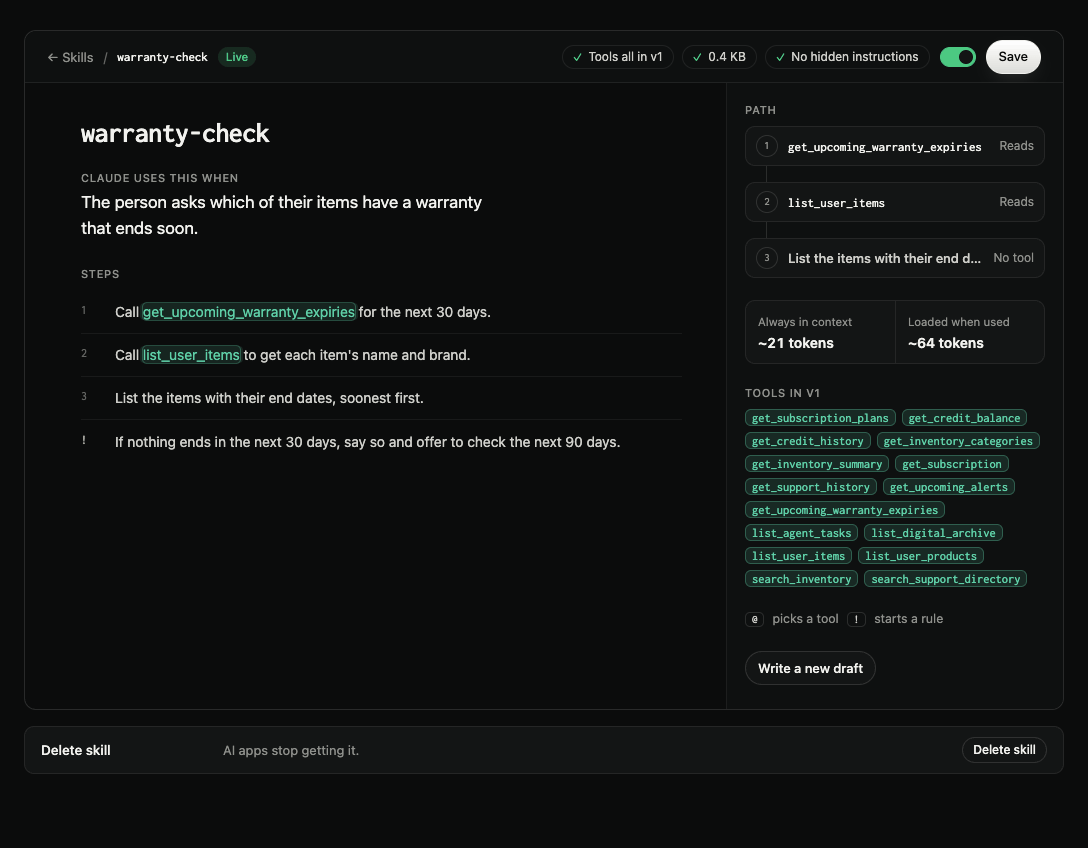
The left side is the skill itself:
- Name: lowercase letters, numbers and single hyphens, up to 64 characters, such as
warranty-check. Two skills on one connector can't share a name. - Claude uses this when: one line, up to 1,024 characters, that says what the person asks for. AI apps always read this line, and load the skill when a request matches it.
- Steps: one action per step. Type @ to pick a tool from a list. Type ! on an empty step to start a rule: something the AI app must always do, or never do, in this task.
The right side helps you check it:
- Path: the route an AI app takes through the steps, drawn as you type. Each step shows the first tool it names, marked Reads or Changes data. A step that names no tool shows No tool.
- Always in context and Loaded when used: the skill's size in tokens, the small pieces of text AI models read. AI apps always load the name and the when-to-use line. The steps load only when the skill is used.
- Tools in vN: the tools in the published version. Select one to put its name in the step you're writing.
- Write a new draft: Transica's AI writes steps for the name and when-to-use line you entered, using the published version's tools. The draft replaces the steps in the form and isn't saved until you select Save. Each connector gets up to 20 drafts a day.
Checks
Three checks at the top change as you type:
| Check | Meaning |
|---|---|
| Tools all in vN | The steps name no removed tool: one that an earlier version had and the published version doesn't. If they do, it shows Removed: and those tools. |
| Size, such as 0.4 KB | The size of the skill file AI apps load. The steps can be up to 90 KB. |
| No hidden instructions | No invisible characters, no encoded text, and nothing that tells the AI app to ignore its instructions, keep something from the person or load instructions from somewhere else. If it shows Hidden instructions, the skill can't be saved. |
Save, switch off, delete
- Save keeps your changes and takes you back to the list. On a hosted connector, AI apps get the change at once.
- The switch next to Save turns this one skill off or on straight away.
- Delete skill, at the bottom: AI apps stop getting the skill. This can't be undone.
Viewers can open skills but can't change them.
New skill
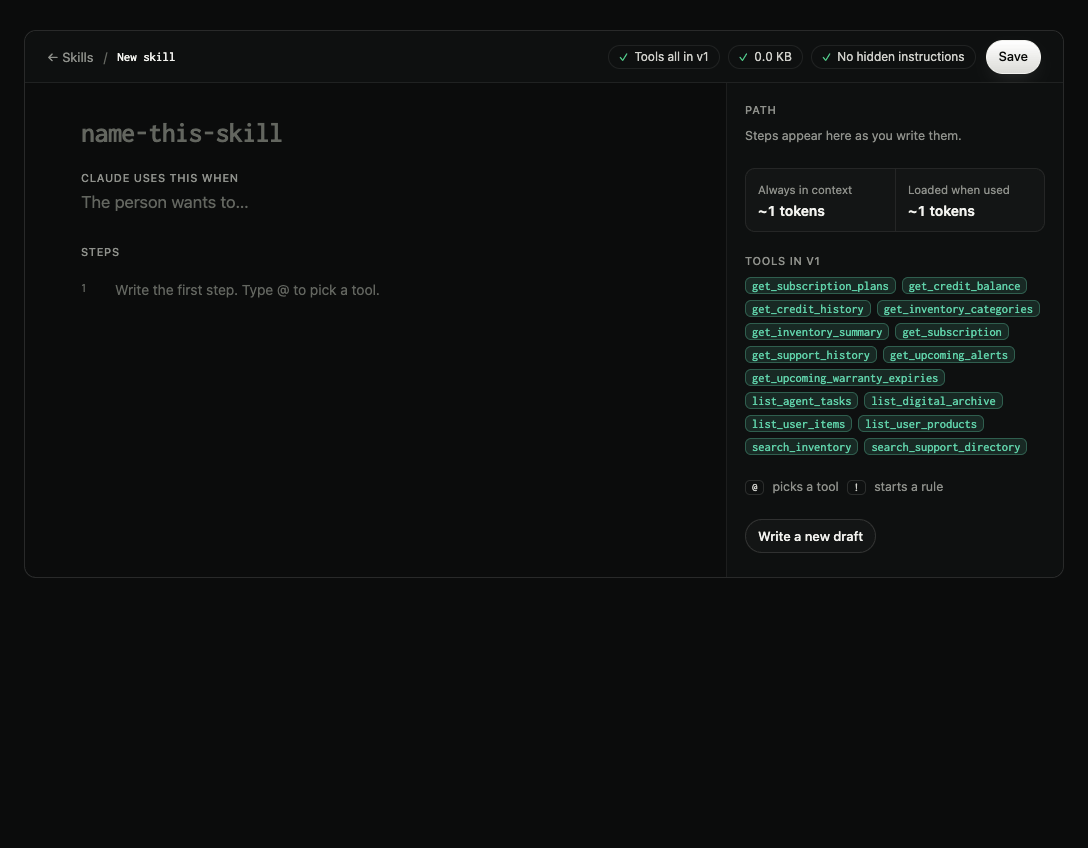
New skill opens the same editor, empty. Write the name and when to use it, then write the steps yourself or select Write a new draft.
Read more: MCP skills: serve Agent Skills from your MCP server on transica.dev.